
A Private Agent is a monitoring location installed within your own network. It is dedicated to your organization and monitors only your devices. Its availability depends on the system it is installed on and is not managed directly by Dotcom-Monitor.
Use the steps below to diagnose and resolve common Private Agent issues.
Basic Checks
Before proceeding, make sure that:
- The computer hosting the Private Agent is online.
- The Private Agent service is running.
Make Sure the Agent Is Up to Date
- Open the Start menu > Programs > Dotcom-Monitor > Agent Version Manager.
- If the latest version identified is not listed as Active, click Activate.
- If it is already active, click Reactivate.
Check whether the Service Is Running
- Open Windows Services.
- Locate a service named Dotcom-Monitor Private Agent.
- Confirm that the service is running.
If the service is not running:
- Restart the machine to clear potential conflicts.
- Or start the service manually.
Check the Log On As column:
- It should be Local System or a user with administrative privileges.
- If a username is used, open Properties > Log On and re-enter the credentials.
Verify Access to Dotcom-Monitor Resources
Check the availability of the following resources essential for agent operation. Use the automatic check or the manual check.
Automatic check
- Open the Start menu > Programs > Dotcom-Monitor > Private Agent Registrator.
- Click Options.
- Select the Diagnostics tab.
- Click Do Check.
The tool tests connectivity and configuration items, including API entry point availability, API entry point certificates, WebProxy connectivity, and supported TLS versions. A green check mark means the item passed. A yellow warning icon means the item needs attention.
- If an item shows a warning, click View Logs to open the diagnostic log.
- Click Copy To Clipboard to copy the log. Attach this log to a support ticket if you need help.
Manual check
Check these URLs from a browser on the machine hosting the Private Agent.
These should return a service page:
- https://privateagentcontroller.dotcom-monitor.com/PrivateAgentController/RemoteConfigurationService.svc
- https://privateagentcontroller2.dotcom-monitor.com/PrivateAgentController/RemoteConfigurationService.svc
These should return a blank page:
- https://privateagentcontroller.dotcom-monitor.com/PrivateAgentWebProxy/entrypoint.wproxy
- https://privateagentcontroller2.dotcom-monitor.com/PrivateAgentWebProxy/entrypoint.wproxy
If any of these URLs are blocked, update your firewall or network rules. If they load correctly and issues persist, open a support ticket.
Check for False Positive Alerts
If you receive alerts that the Private Agent is not reporting, confirm that at least one monitoring device is assigned to the agent. If no devices use the agent, it has nothing to report and may trigger a false alert.
Check Proxy Settings
If your network requires a proxy:
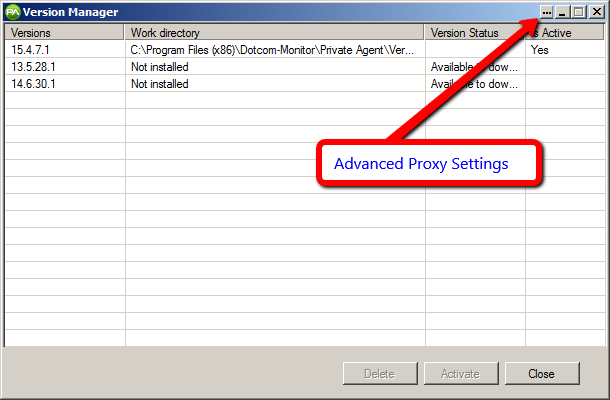
- Open Agent Version Manager.
- Click the ellipsis in the upper-right corner and open Advanced Settings.
- Configure proxy settings.
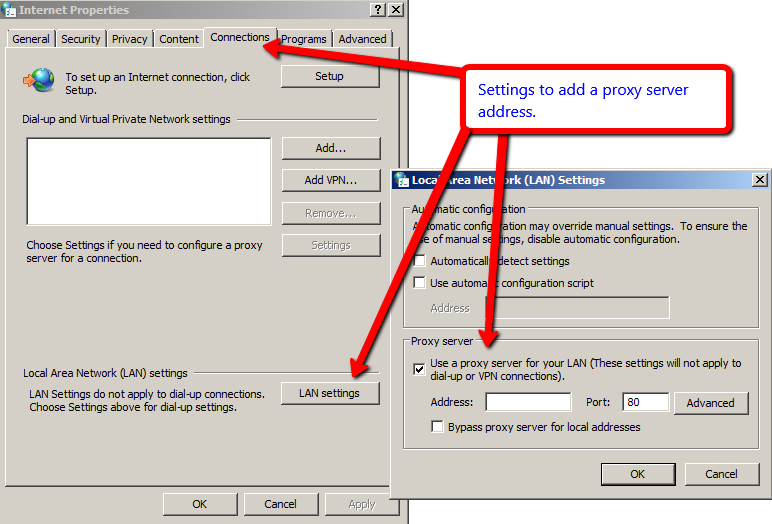
You can find proxy details in your browser under Internet Options > Connections > LAN Settings. From here, you can enter a Proxy IP address and Port.
Verify that the Agent Is Sending Data
The private agent uses stateless communication with the dotcom-monitor servers. Every minute, it checks with our server if there is something that needs to be monitored. If yes, it takes the tasks, performs monitoring and uploads data. Otherwise, if there is nothing to monitor, it goes back to sleep for 1 minute.
There is no persistent connection to our servers that will allow us to detect “immediately” if the connection breaks.
Dotcom-Monitor determines agent availability based on uploaded results. If no data is received for a configured time period, the agent is marked unavailable. This timeout value is configurable from within your Dotcom-Monitor account, under Manage > Private Agents.
Here are a few other options to check on a private agent besides the email alerts:
- You can create a device that is monitored only by the private agent 24×7 every minute. For this device, you can create a shareable dashboard. The dashboard will have a unique URL that could be accessed from anywhere. The dashboard will show you the last time the device was checked.
- If you have 2 private agents running behind your firewall, technically they can check each other. The private agents listen on port 17000. So, if you setup a Telnet check on Port 17000 from one private agent to another, it will alert you if service would go down.
- If you want to automate using a script, you can use the XML feed and pull last check time for the private agent in XML format. If the last time check is too old, your script can raise a necessary alert.
Browser-based Monitoring Is Not Working
For web application monitoring and certain custom scripts, RDP access is required. For detailed instructions on diagnosing and resolving Remote Desktop connection issues, see Troubleshooting RDP Connection Errors for Dotcom-Monitor Private Agent in the Knowledge Base.
Restart or Reinstall
If the issue persists:
- Restart the server.
- Uninstall and reinstall the Private Agent.
Check Windows Event Viewer > Applications for Dotcom-Monitor errors and include them in your support ticket.
Need Help?
If troubleshooting does not resolve the issue, log in to your Dotcom-Monitor account and submit a support ticket with logs and error details.