This guideline shows how to sign in to a website that requires a client certificate in an EveryStep monitoring or load test script. It applies to websites that use certificate-based authentication.
Store the certificate in the Secure Vault and select it while you record the script. EveryStep applies the certificate automatically each time the script runs.
The process includes:
- Uploading the client certificate to a Secure Vault crypt.
- Recording the script in EveryStep Recorder with the Sign In With Certificate option.
Once completed, the script signs in with the certificate.
Adding the Client Certificate to Secure Vault
The Secure Vault stores the certificate and its password in encrypted form. A crypt can hold more than one certificate.
- Log in to your Dotcom-Monitor account.
- Go to Manage > Secure Vault > New Crypt > Client Certificates.
- Enter a name for the crypt.
- Click New Certificate.
- In the Name field, enter a name for the certificate. Use a name you will recognize later.
- Upload the certificate file. Only PFX and PEM files are supported.
- Click Done
- For PFX files, provide the certificate password.
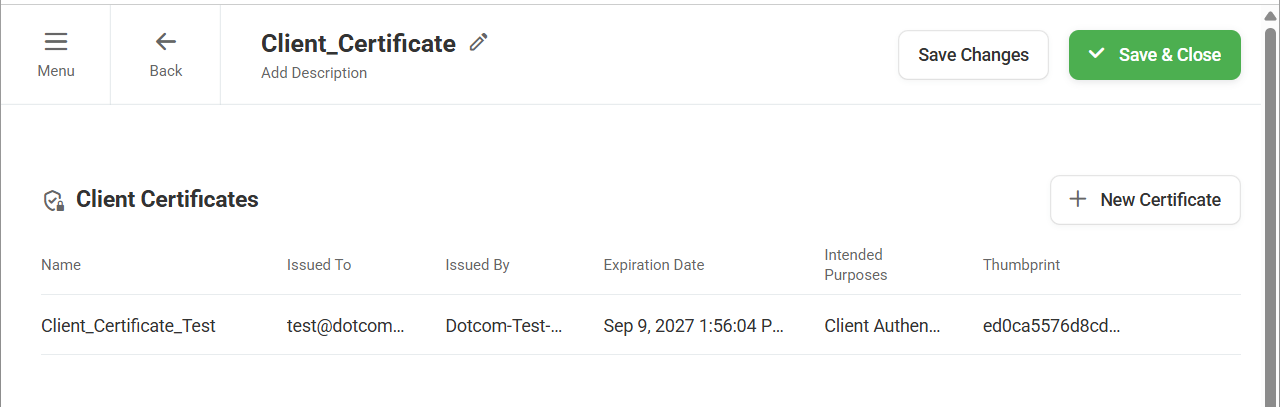
- Check the Certificate Details. Make sure the certificate has not expired and Intended Purposes includes “Clients Authentication”.
- Click Done and Create Crypt to save the certificate in Secure Vault.
The crypt now shows the certificate in the Client Certificates list.
Recording a Script in Dotcom-Monitor EveryStep Recorder
Open EveryStep Recorder from a web application monitoring device or a real browser load test target. For details, see Getting Started with EveryStep Scripting Tool for Browser Recording.
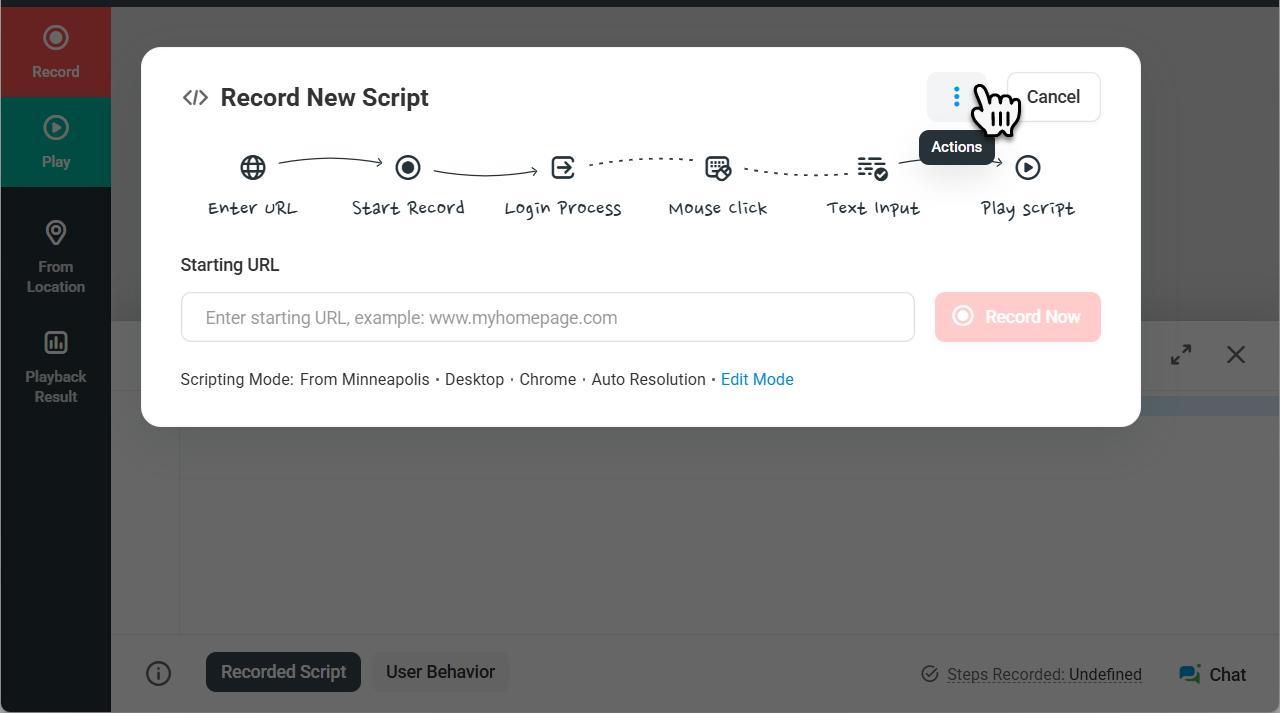
- In the Record New Script dialog, click Actions (⋮).

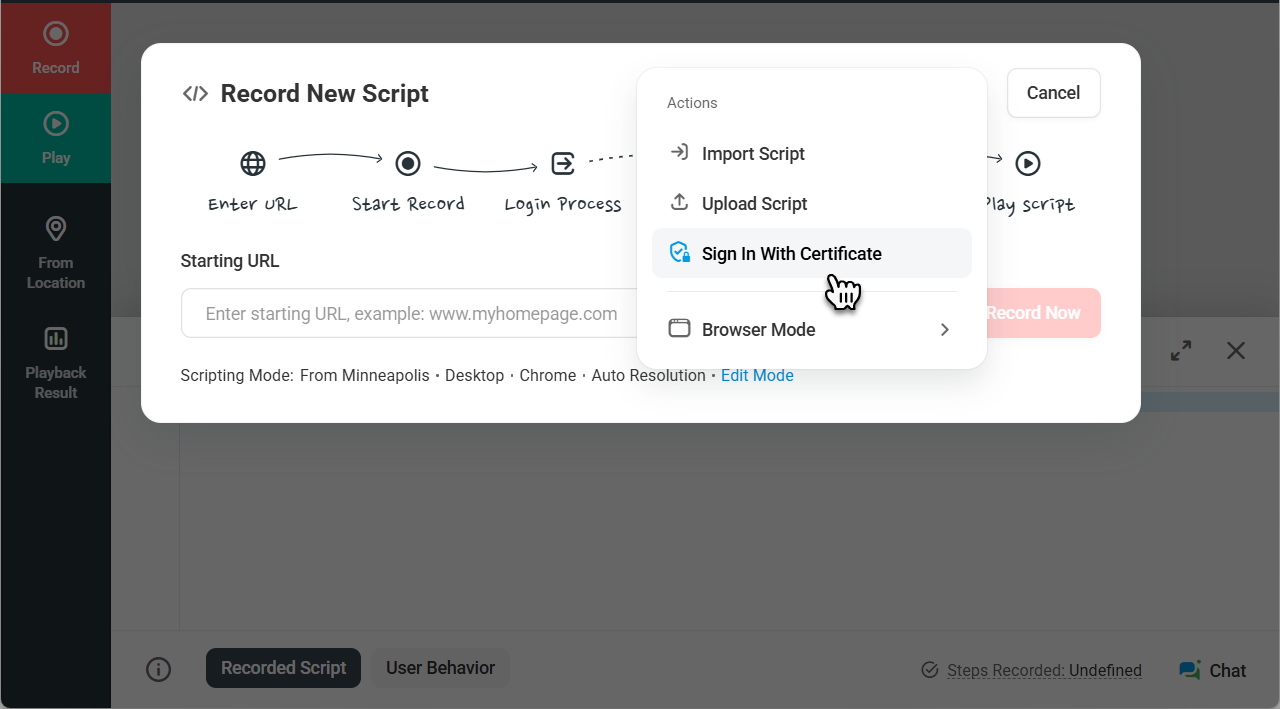
- Select Sign In With Certificate.

- Select the crypt and the certificate that you added earlier.
- Enter the starting URL and click Record Now.
- Record the rest of the script.
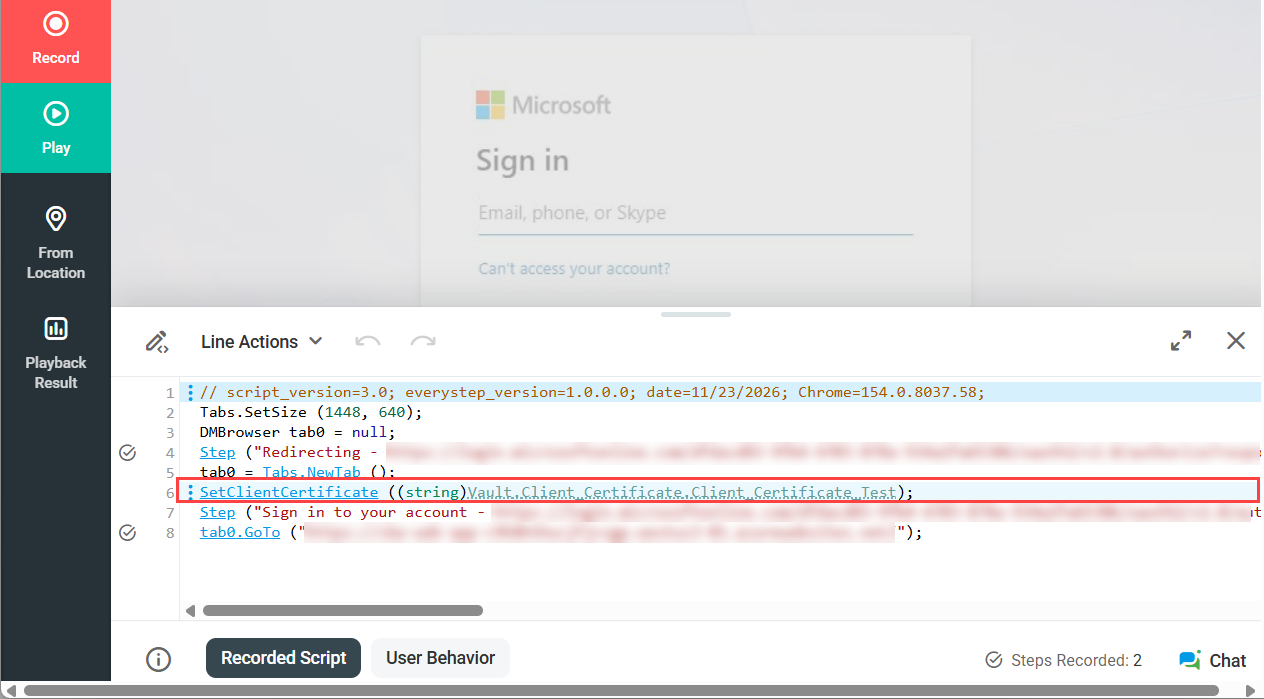
EveryStep adds a SetClientCertificate line to the script, before the first GoTo command. The line uses the crypt name and the certificate name:
SetClientCertificate((string)Vault.Client_Certificate.Client_Certificate_Test);
Your script now signs in with the client certificate each time it runs. You can update the certificate at any time by uploading a new certificate with the same name to the crypt that was used in the EveryStep script.