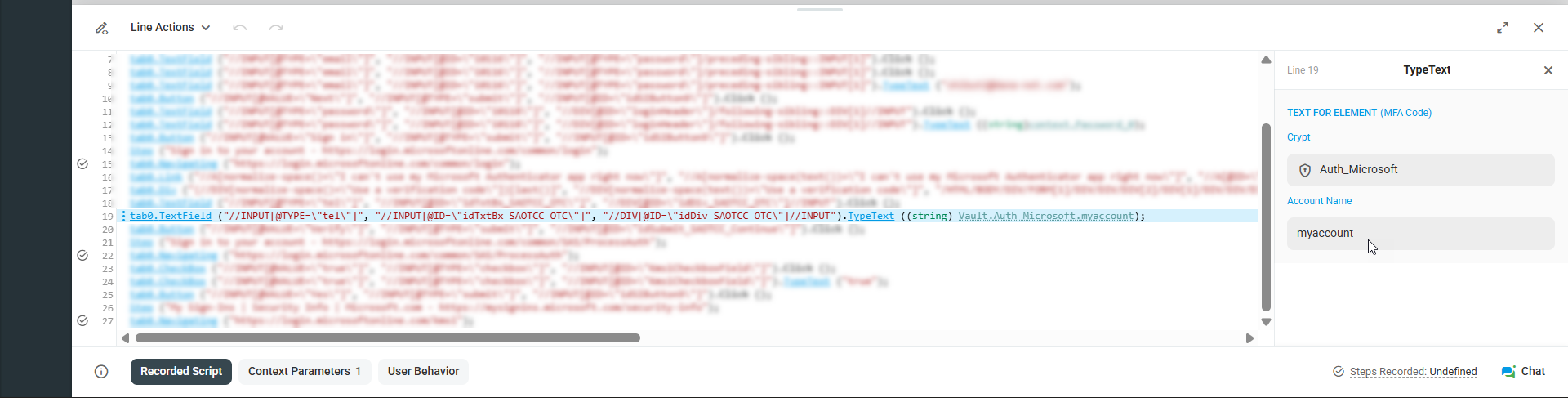
This guideline shows how to record an EveryStep monitoring script for an application that requires two-factor authentication (2FA) during login. It applies specifically to TOTP (Time-based One-Time Password) authentication – the 6-digit code generated by an authenticator app and refreshed every 30 seconds. Other 2FA methods, such as SMS codes or push notifications, work differently and are not covered here.
The examples cover Microsoft and Google accounts, with the setup shown for Microsoft.
- Setting up a third-party TOTP method in your Microsoft or Google account.
- Configuring automatic TOTP generation in the script using a Secure Vault encrypted variable.
- Recording the login process using EveryStep Recorder and the MFA Code option.
Once completed, the monitoring script logs in without manual code entry, even when 2FA is enabled.
Setting Up Third-Party Time-Based OTP (TOTP) Sign-in Method
Go to Your Security Page
- Open: https://mysignins.microsoft.com/security-info
- Sign in with your Microsoft 365 account.
- Click + Add sign-in method.

- Choose Authenticator app and click Add.

- Select “Set up a different authenticator app”.

- When QR appears → click “Can’t scan the QR code?”.

- You will now see your Secret key. This key is the “shared secret” used to generate your 6-digit login codes.

- Copy the secret key. You will use this key later to generate a valid TOTP code in Dotcom-Monitor .
- Keep the Microsoft browser tab open.
- Continue to the next section.
Adding the Key to Dotcom-Monitor Secure Vault
The goal of this step is to configure automatic TOTP code generation inside your monitoring script. The secret key will be stored securely in the Dotcom-Monitor Secure Vault as an encrypted variable. Once configured, the system will automatically generate a valid TOTP code each time the monitoring script runs.
- Login to your Dotcom-Monitor account.
- Go to Manage > Secure Vault > New Crypt > Authenticator Keys.
- In the Account name field, enter a descriptive name for the key. Use a name you will recognize later, for example your Microsoft account name. The name must start with a Latin letter and can contain only Latin letters, numbers and underscores.
- Paste the secret key from Microsoft into the Secret Key field.
- Dotcom-Monitor generates a 6-digit code.
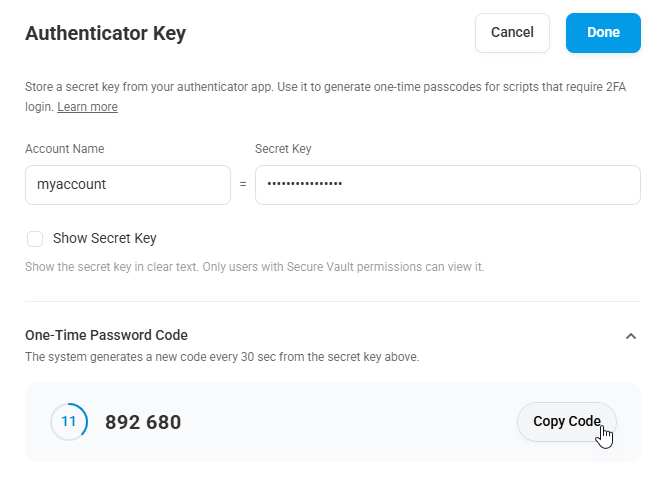
- Copy the code.
Complete Verification
- Return to the Microsoft browser tab, click Next. Microsoft prompts you for a 6-digit code.
- Enter the code you copied from Dotcom-Monitor.

- Click Verify to finish setup.
The provider confirms the code and completes setup. Make sure you see a confirmation screen before proceeding.

Recording a Script in Dotcom-Monitor EveryStep Recorder
Login to your Dotcom-Monitor account and start recording a sign-in step to your Microsoft account with EveryStep Recorder.

At the Approve your sign in request step:
- Click I can’t use my authenticator app right now.

- Select Use a verification code.

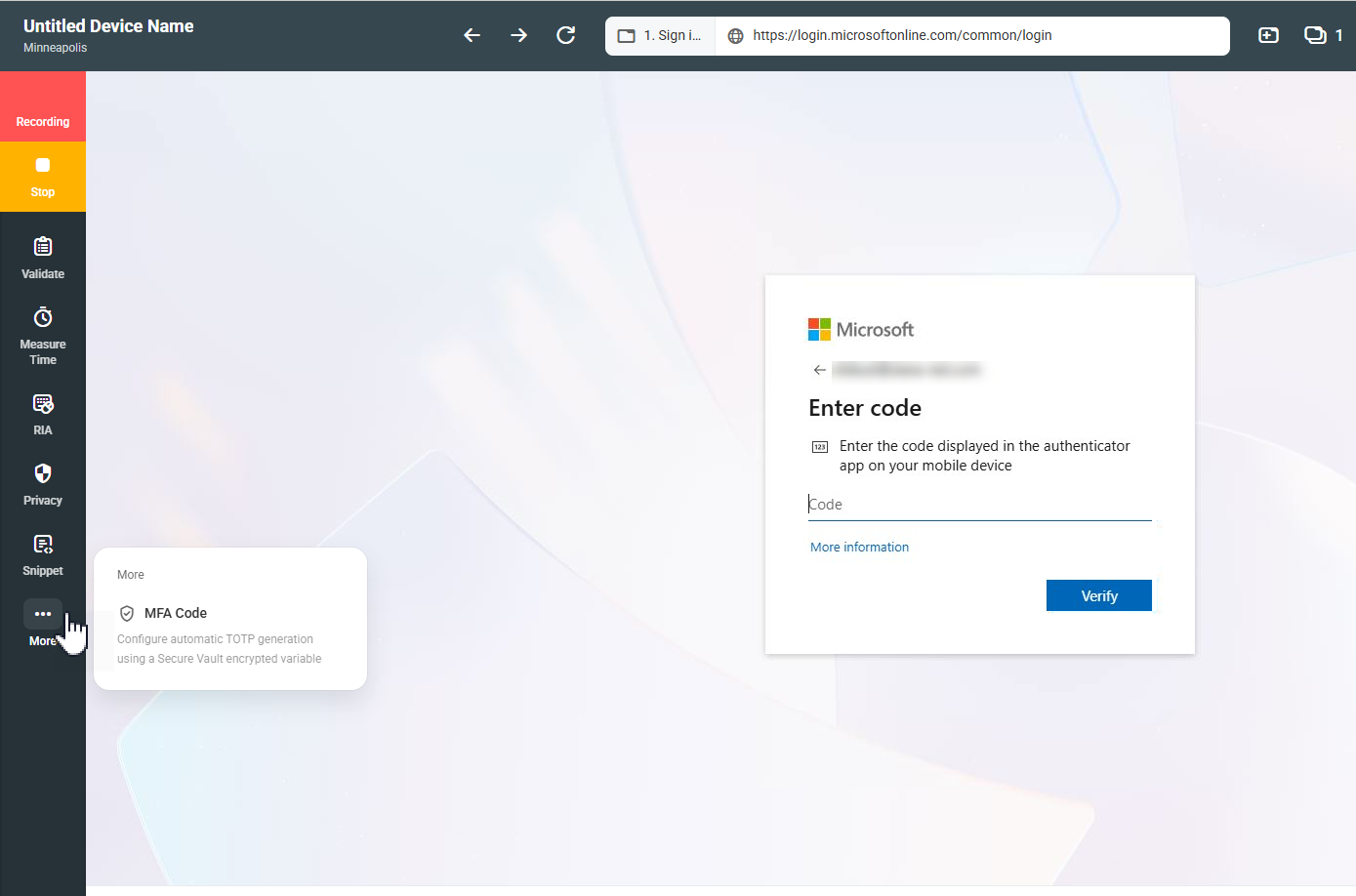
- On the left side bar, under More, click MFA Code.
- Select the Crypt and the account name assotiated with the secret key you created earlier. Dotcom-Monitor automaticaly populates the generated code.
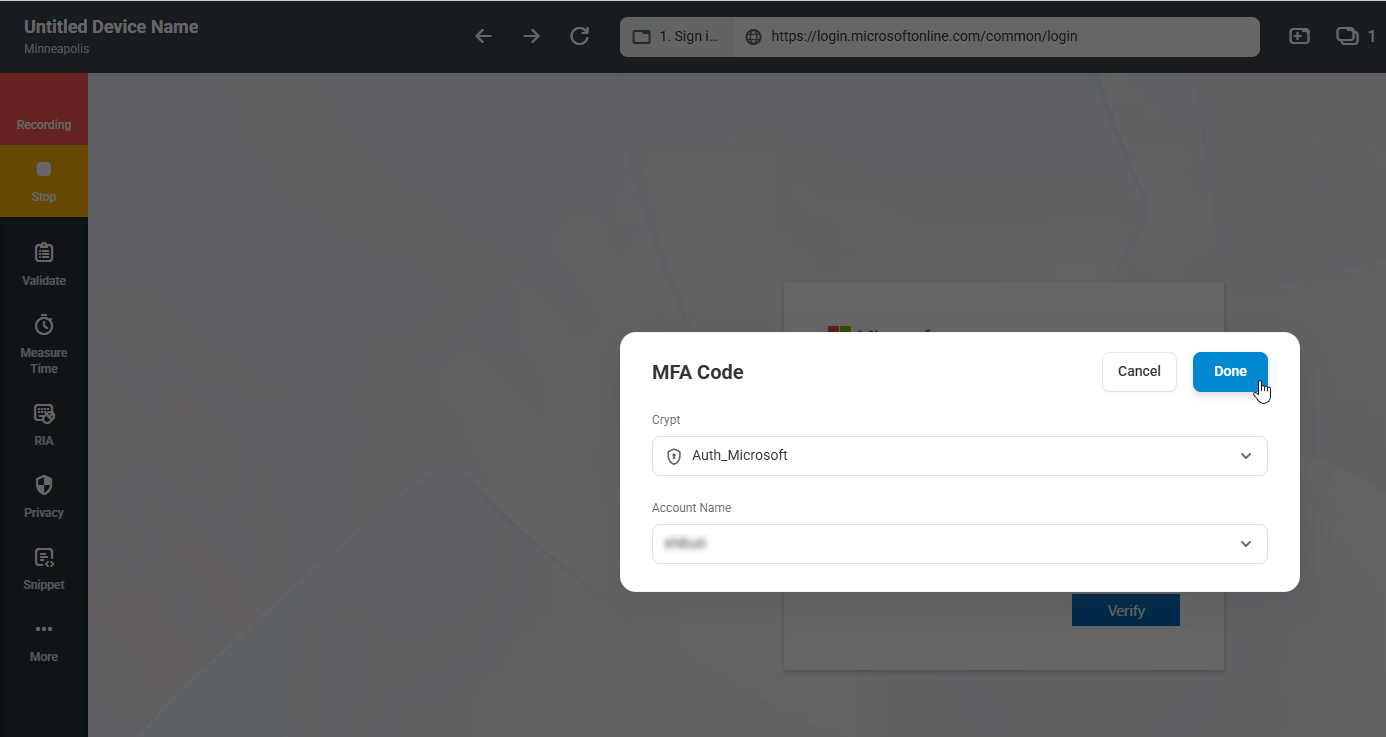
- Click Verify and wait until login step completes successfully, then continue or stop recording.
Final Result
Your monitoring script will now automatically generate a valid TOTP code using the encrypted secret key each time it runs.
No manual code entry required.