
Dotcom-Monitor can monitor Microsoft 365 (Exchange Online) mailboxes using OAuth-based Modern Authentication. To monitor a mailbox, Dotcom-Monitor needs delegated access to the mailbox on behalf of the user. The GetOAuthToken utility helps you authorize Dotcom-Monitor to access the account and generate the authentication script required by the monitoring target.
For an overview of OAuth 2.0, delegated access, tokens, scopes, and how Modern Authentication works, see OAuth Token Acquisition in Dotcom-Monitor: Microsoft 365, Google and Custom Identity Providers.
Step 1: Download and start GetOAuthToken
Download the latest version of GetOAuthToken: GetOAuthToken.zip.
Extract the archive and run the application.
The application uses Microsoft Edge WebView2 to display the Microsoft sign-in page. If you do not see “Your browser is up to date” on the right-hand side of the application, install Microsoft Edge WebView2 from Microsoft’s official website before continuing: https://developer.microsoft.com/en-us/microsoft-edge/webview2/.
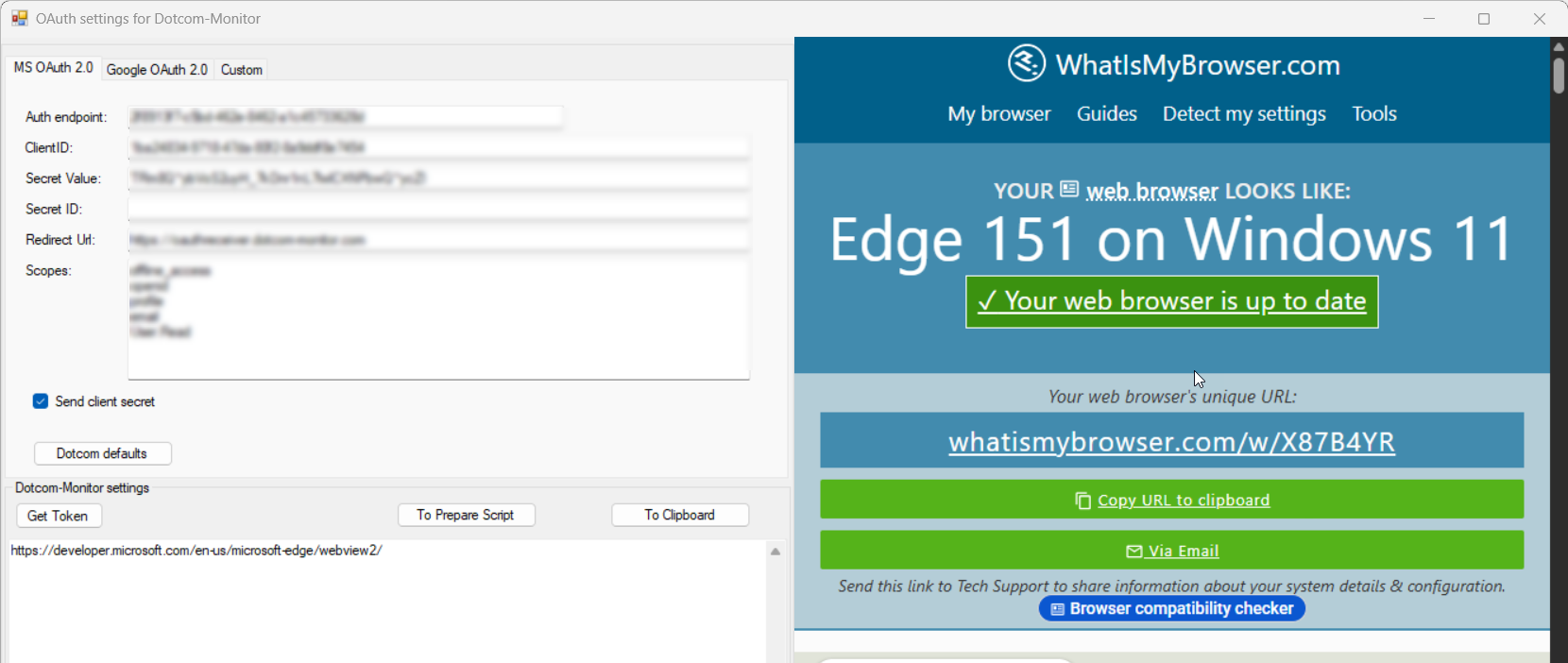
Step 2: Select MS OAuth
In the GetOAuthToken application, click Get Token to login into the Office 365 account you want to monitor. This opens the Microsoft authentication flow.
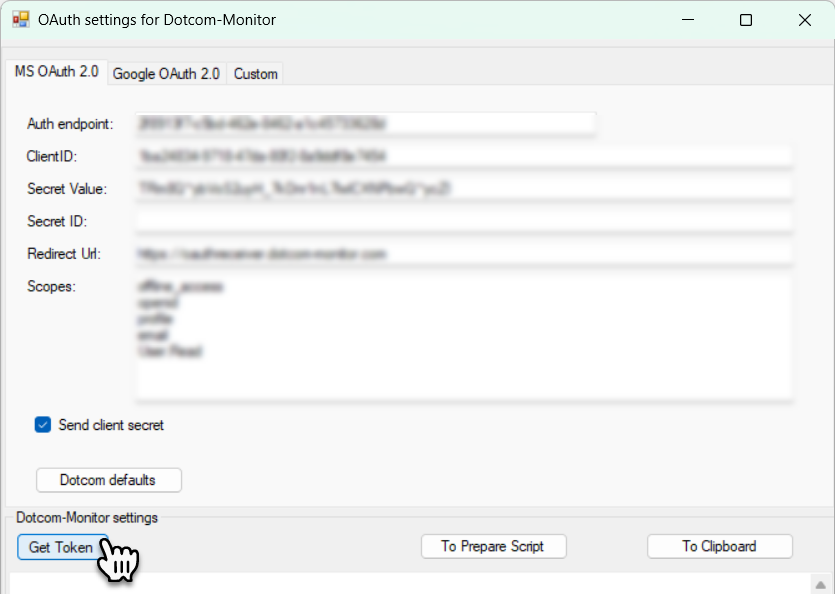
Step 3: Sign in to the mailbox
Login into the Office 365 account you want to monitor using modern auth. Make sure you sign in with the same username configured in the Dotcom-Monitor target.
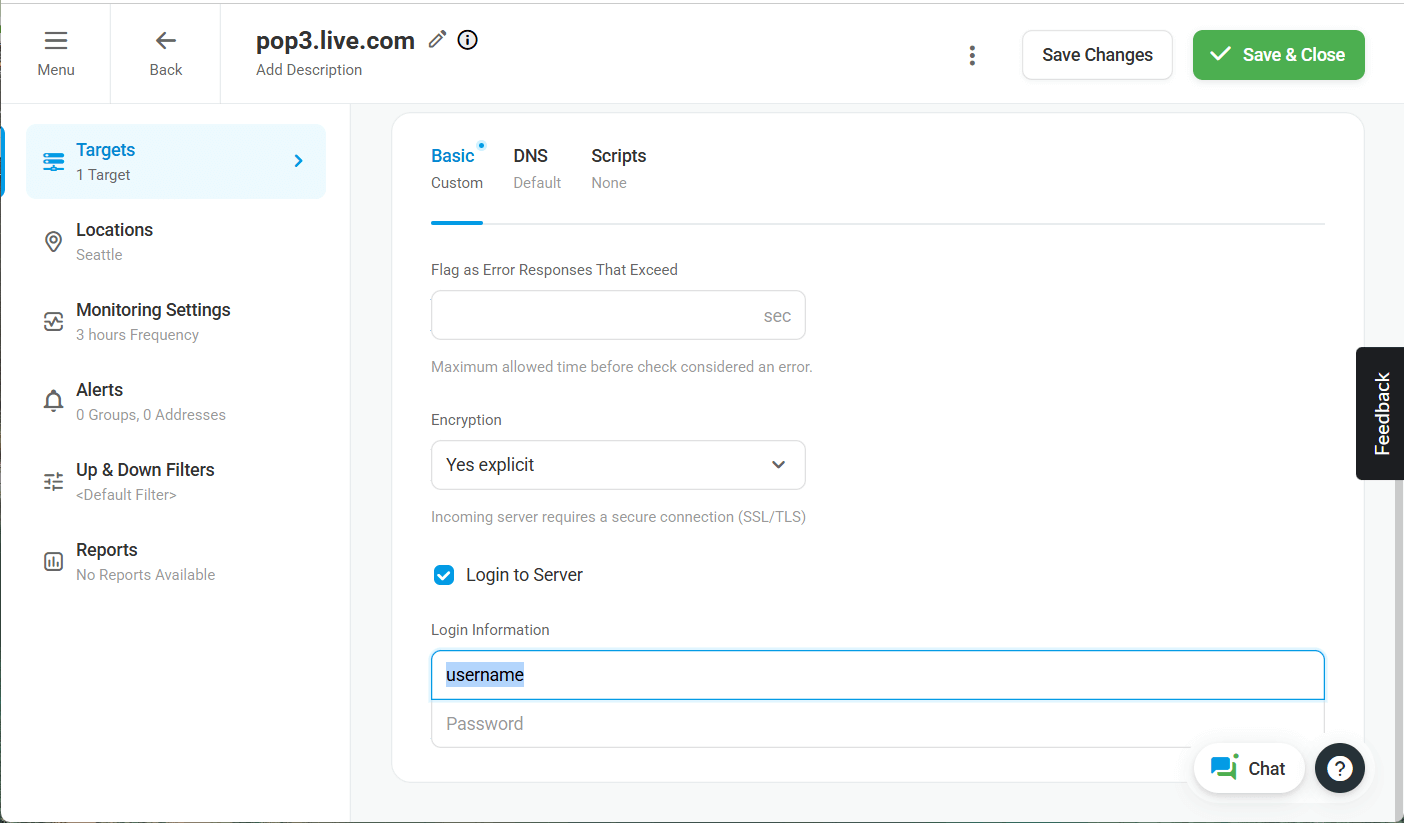
Step 4: Grant Dotcom-Monitor access
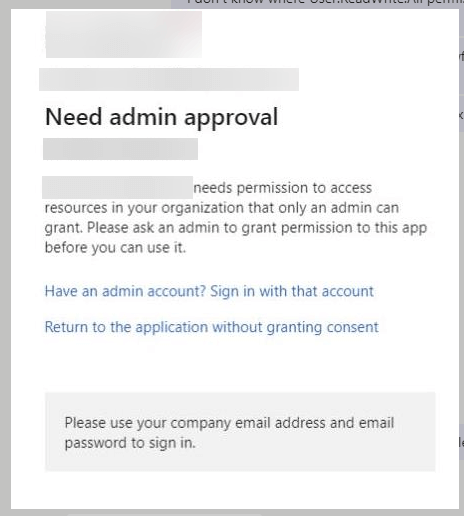
After you sign in, GetOAuthToken requests the permissions required for Dotcom-Monitor to access the account.
If you have sufficient administrator permissions, the application automatically populates the Dotcom-Monitor settings field with the information required to access the account, including the refresh token and the scopes configured for the Dotcom-Monitor application in your Microsoft Entra ID environment.
Step 5: Generate the Prepare Script
After successful authorization, GetOAuthToken displays the OAuth configuration required by Dotcom-Monitor.
Click To Prepare Script.
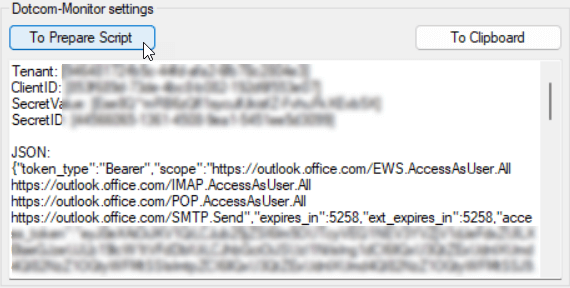
The application converts the OAuth configuration into a script that can be used by the monitoring target.
Step 6: Copy the script
Click To Clipboard to copy the generated script.
Then open the corresponding monitoring target in your Dotcom-Monitor account and paste the script into the Prepare Script field.
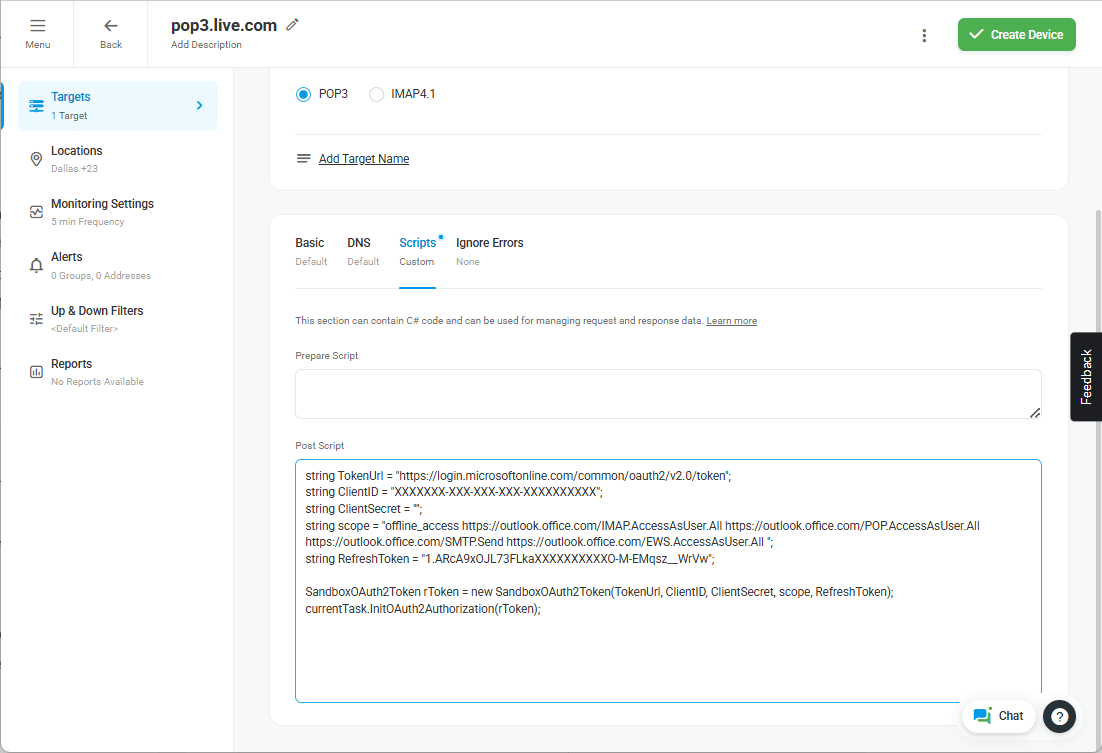
Save the monitoring target configuration.
At this point, Dotcom-Monitor can use the generated OAuth credentials to authenticate to the Microsoft 365 mailbox using Modern Authentication.
Limiting OAuth 2.0 Token Scope to a Specific Protocol
If you want to limit the scope of your token to a specific protocol, you can use the OAuth2Target enum when initializing authorization in your Prepare Script:
public enum OAuth2Target { All, Http, Smtp, Pop3, Imap, ActiveSync, WebSocket, Media };
Example: Restricting OAuth Token to POP3 Only
string TokenUrl = "https://login.microsoftonline.com/common/oauth2/v2.0/token";
string ClientID = "XXXXXXX-XXX-XXX-XXX-XXXXXXXXXX";
string ClientSecret = "";
string scope = "offline_access https://outlook.office.com/POP.AccessAsUser.All";
string RefreshToken = "1.ARcA9xOJL73FLkaXXXXXXXXXXO-M-EMqsz__WrVw";

SandboxOAuth2Token rToken = new SandboxOAuth2Token(TokenUrl, ClientID, ClientSecret, scope, RefreshToken);

// Initialize authorization specifically for POP3
currentTask.InitOAuth2Authorization(rToken, OAuth2Target.Pop3);