LoadView On-Prem Load Injector (On-Prem LI) relies on Microsoft Remote Desktop Protocol (RDP) to execute browser-based load tests inside your internal network. If RDP authentication or session policies fail, load test execution will not start, and the On-Prem LI will log disconnect or logon errors in the following format:
<Username>=(<Error description> (DisconnectState(<code>)))
Use the username shown in the error message to determine which Windows account is affected.
Before you begin troubleshooting, make sure RDP is enabled:
- Open Settings > System > Remote Desktop.
- Turn Remote Desktop ON.
- Expand Advanced settings.
- Confirm that Network Level Authentication is enabled.
Disconnect State(2055): User Does Not Exist or Password Is Not Correct
What This Means
The On-Prem LI tried to log in using the specified Windows user, but either the account does not exist on the machine, or the password stored in the On-Prem LI configuration does not match the Windows account password.
How to Fix
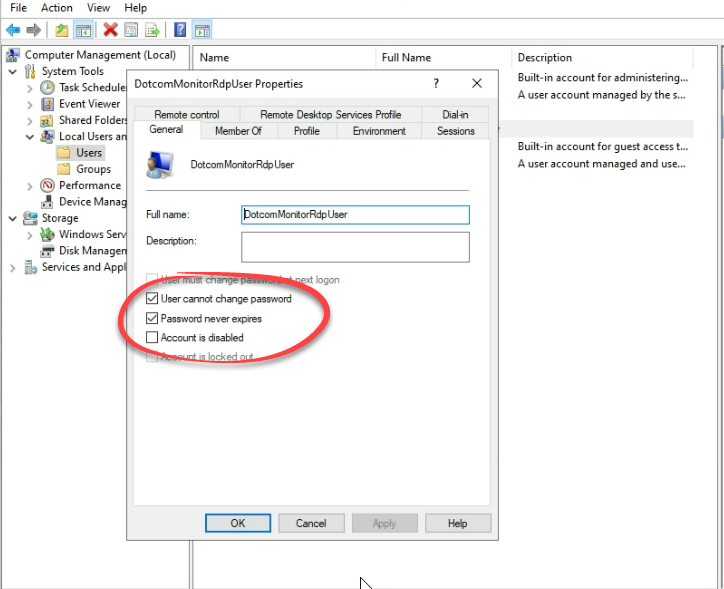
Check if the user account exists and is configured correctly.
- Open Computer Management > Local Users and Groups > Users.
- If the user shown in the error does not exist, create it.
- Ensure User must cannot change password and Password never expires are selected.

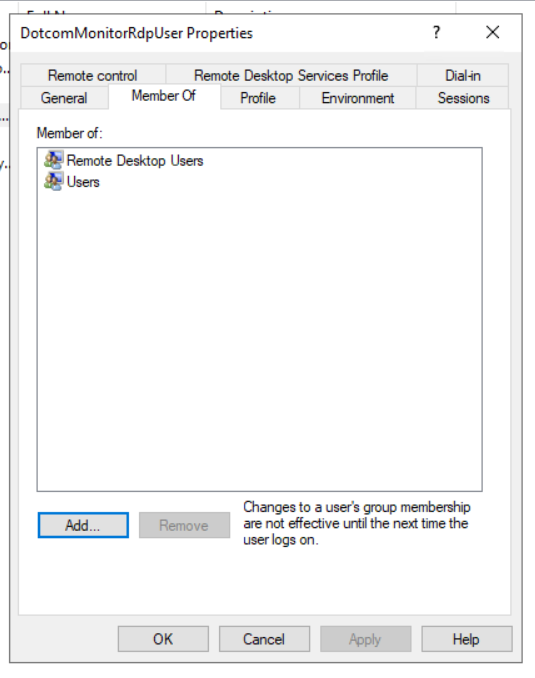
- Add the user to the Remote Desktop Users group.

- If you are using a custom user account, re-enter the account credentials for the On-Prem LI secondary service (PremAgentService_SLAVE_SR01).

- Restart the On-Prem LI service.


DisconnectState(3): User Not Allowed to Use RDP
What This Means
Authentication succeeded, but Windows refused to start an RDP session because the user is not authorized for Remote Desktop access.
How to Fix
- Open Computer Management > Groups > Remote Desktop Users.
- Click Add and add the user shown in the error to the group.
- Click OK and restart the On-Prem LI service.
DisconnectState(8455): Saved Credentials Not Allowed
What This Means
Windows is configured to require manual password entry for every RDP connection. Stored credentials are not allowed. Because the on-premises agent runs without user interaction, it cannot enter a password when prompted, so the RDP connection is rejected.
How to Fix
Allow RDP connections to use saved credentials, or ask your security team to apply this setting in your domain Group Policy.
If you manage the local machine policy, follow the steps below to enable saved passwords:
- Open the Start menu and search for Group Policy.
- Open Edit group policy.
- Go to Computer Configuration > Administrative Templates > Windows Components > Remote Desktop Services > Remote Desktop Session Host > Security.
- Locate Always prompt for password upon connection and set it to Disabled.
- After changing Windows Policy, run this command with administrative privilege: gpupdate /force and restart your machine.
- Restart the on-premises agent service.

DisconnectState(1800): Console Session Already Active
What This Means
Windows limits how many console or RDP sessions can be created and re-used. When an existing session is already active under the configured user, the system may block additional session attempts. As a result, the On-Prem LI cannot configure the user required to run secondary components for web application load tests.
Because of this behavior, we recommend configuring the PremAgentService_SLAVE_SR01 service to run under an existing local or domain Windows user account that has RDP login rights on the machine.
How to Fix
Scenario 1 — You configured a custom Windows user for PremAgentService_SLAVE_SR01
Verify that:
- The user has Remote Desktop login rights on the machine.
- The user currently has an active RDP session on the machine.
Scenario 2 — You are using the default DotcomMonitorRdpUser
Consider switching the on-premises agent service to use an existing Windows user account with RDP login rights:
- Open the Windows Services console.
- Locate PremAgentService_SLAVE_SR01.
- Right-click the service and select Properties.
- Open the Log On tab.
- Enter Windows local or domain user credentials.
- Apply changes and restart the on-premises agent service.
- Make sure the user currently has an active RDP session on the machine.
When configured correctly, Dotcom-Monitor will automatically detect and use this account to run supporting processes.
DisconnectState(2823): Account Disabled
What This Means
The Windows account used by the On-Prem LI exists but is disabled. Windows blocks all login attempts for disabled accounts.
How to Fix
- Go to Start > Computer Management > Local Users and Groups > Users.
- Right-click inside the Users list and select New User.
- Click Add and add DotcomMonitorRdpUser.
- Uncheck Account is disabled.
- Save changes and restart the on-premises agent service.