
If you need to send alert notifications tailored to specific scenarios—such as help desk tickets, problem reports, or emails that require custom formatting and detailed monitoring information (location, error code, alert reason, and more)—you can use the Custom Alert Template option in Dotcom-Monitor.
For example, technical alerts can include links to network traceroutes or snapshots of the errors that triggered the notification.
The alert template lets you define the look, feel, and content of your alert messages. More importantly, you can reuse a customized template across multiple notification groups, either as is or as a starting point for new messages.
Before you begin, see the Dotcom-Monitor Dynamic Variables Reference for commonly used dynamic variables.
Creating Alert Template Content
Custom Alert Template functionality can be accessed from the left sidebar menu under Manage > Custom Alert Templates. To create a new template, on the Custom Alert Templates screen, click New Template and follow the recommendations of this article.
1.Specify a descriptive name that is going to be recognizable in a list of other alert templates.
2. Select the notification format from the list at the top of the Alert Template editor.
The alert template content can be created and sent in HTML, JSON, or TXT formats.
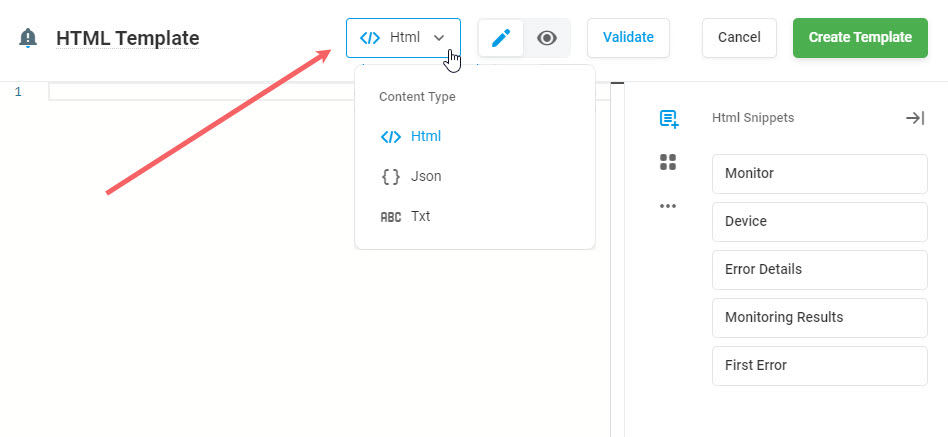
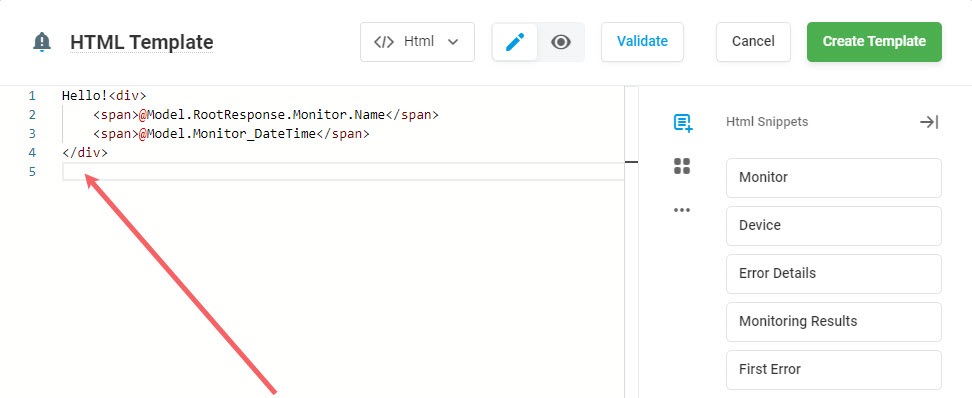
3. Add the content of the message in the selected format in the editor.
The Alert Template editor allows you to input static content and dynamic variables based on Razor syntax to customize the alert for the intended recipient. For example, a device name with assigned tags, error code, and response time can be added to the message as dynamic variables. This can help troubleshoot the errors that trigger an alert.
To learn how to use Razor syntax and Dotcom-Monito Object Model to customize your alert template, see the Dotcom-Monitor Object Model with Alert Template Examples article of this wiki.
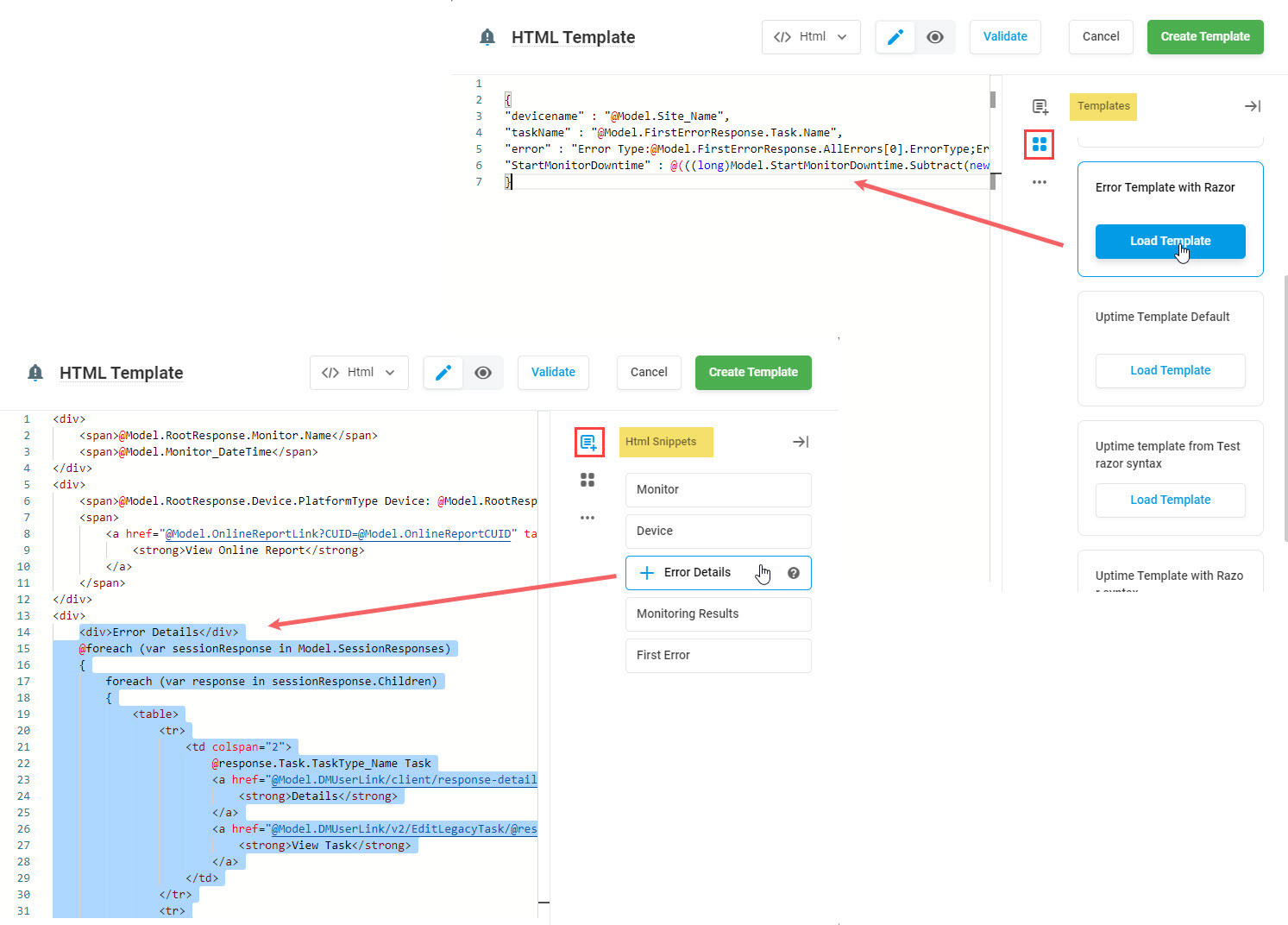
Use the right sidebar of the template editor to add code snippets or content of existing templates to your message.
You can also upload your own file with a customized alert message to the editor. To do this, go to the More Actions menu under the three-dot icon on the right sidebar and click Upload Local File. You can change the uploaded content from within the editor as usual.
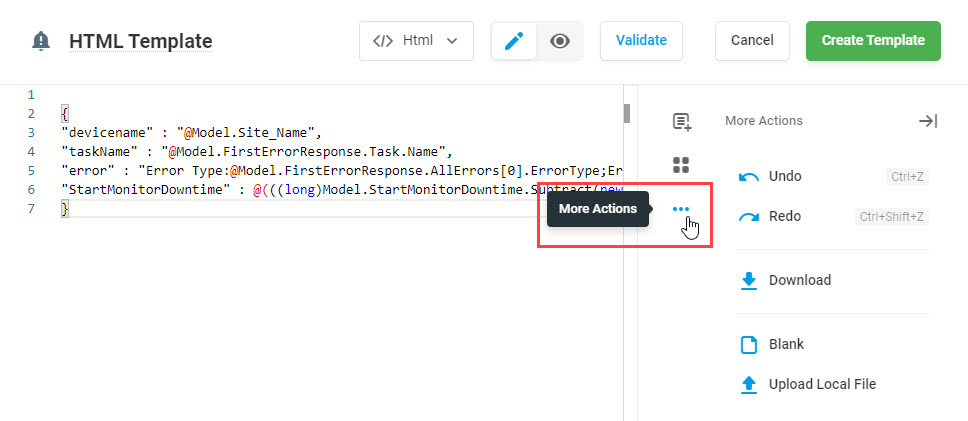
To undo an action press Ctrl+Z. To reverse your last Undo, press Ctrl+Shift+Z. Or you can click the corresponding command on the editor action menu. To delete the template content, click Blank on the editor action menu.
To edit your Alert Template on your local computer, click Download on the editor action menu and use the Upload Local File command to upload locally edited content to the Alert Template editor.
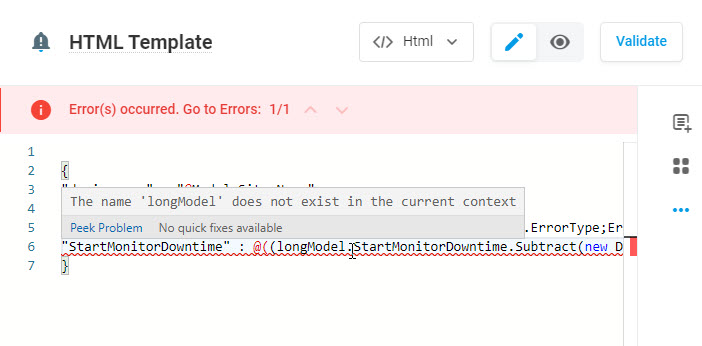
4. Validate the template code by clicking Validate and fix errors if highlighted.
Previewing Alert Messages
To preview an alert message that will be generated and sent to a recipient in the case of a trigger event, click the eye icon at the top of the editor window. The message code will be parsed and presented in accordance with the preview template that can be set on the ride sidebar. By switching between the trigger event types and platforms you can preview how your message will look like in each case.
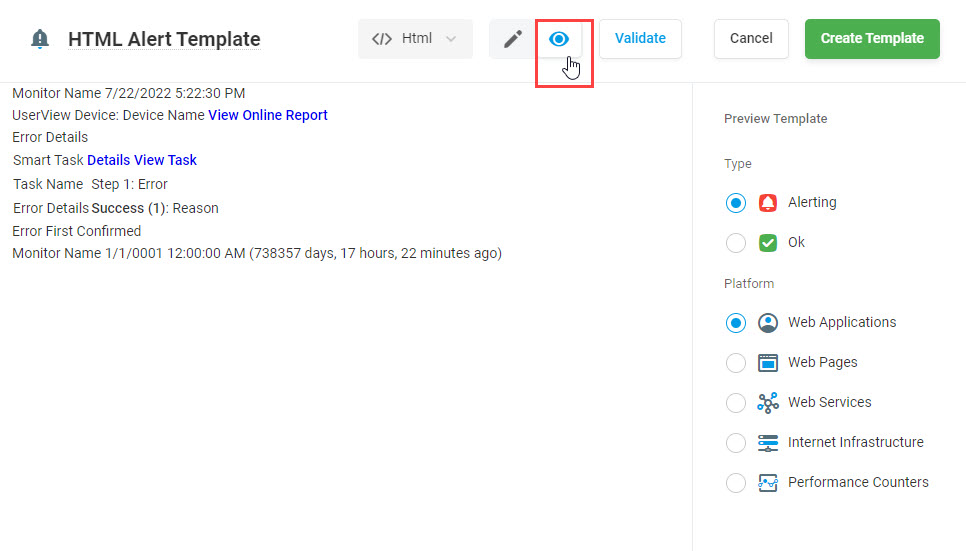
To save the template, click Create Template. The Custom Alert Template can be edited at any time from within the Custom Alert Template manager screen.
Using the Template to Set Up a Notification Group
To use the template to create a notification message that must be sent to a specific Notification Group, go to the Notification Groups manager (Manage> Delivery Address Groups) and select an existing group in the list for editing or create a new group depending on your goals.

In the Notification Group settings, go to the Delivery Address editor and expand the Advanced section. Next, select the required template name in the Message field.
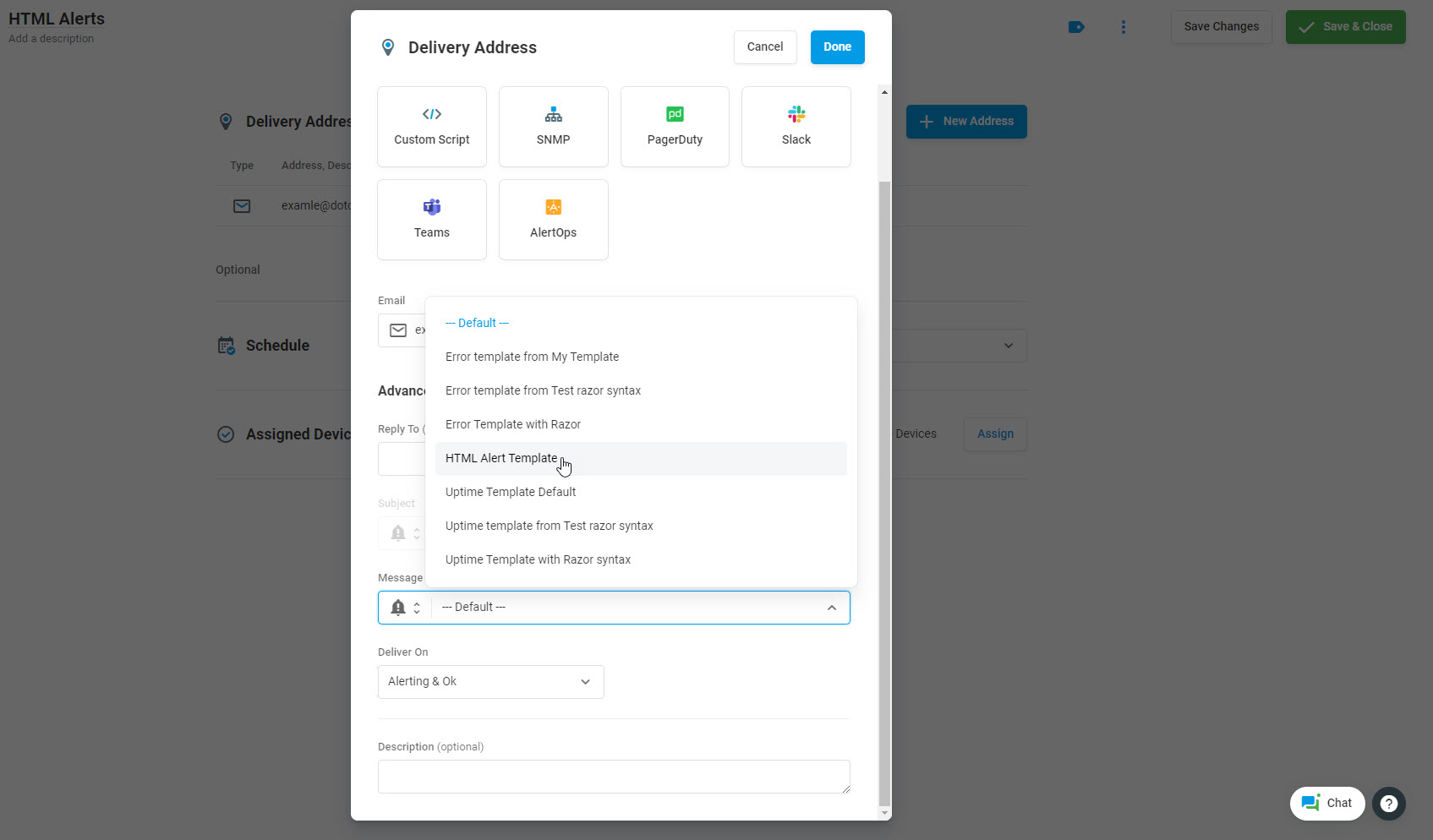
Learn how to configure Notification Groups in the Creating a New Notification Group article of our Knowledge Base.
The Alert Template Options from within the Dotcom-Monitor platform provide administrators with the flexibility to easily and quickly create customized error alert messages for special alerting scenarios.
Find out more about all the advanced Dotcom-Monitor alert options, such as alert delivery mechanisms (SMS text messages, phone calls, Slack, PagerDuty, etc.), Group Alerts, Alert Escalation, and more. The alerting configurations from Dotcom-Monitor provide administrators and teams with immediate error alerts to minimize downtime and maintain high levels of user satisfaction.
Questions about Alert Templates? Contact our support team directly or log in to your Dotcom-Monitor account and create a Support Ticket from within the dashboard.