Context parameters can be used within a monitoring device to send contextual information with each request or dynamically change the request parameters.
Manage Context Parameters
Context parameters can be configured in the Context Parameters manager, which can be accessed by clicking the Context Parameters button on the target settings page.
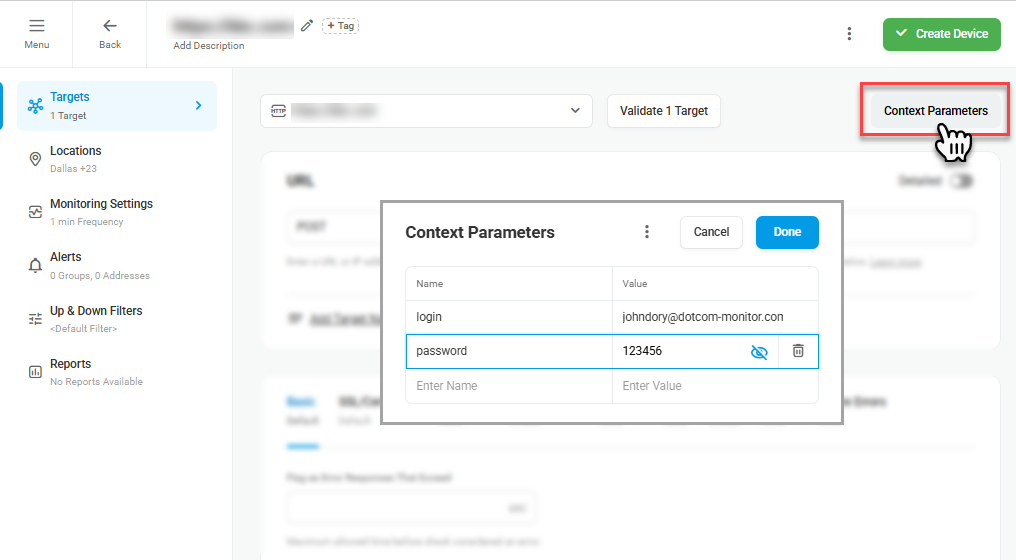
Adding New Context Parameters
To specify a default dynamic value for a context parameter in the Context Parameters manager, add a name-value pair in the corresponding fields.
Import Context Parameters
Dotcom-Monitor supports import of context parameters with their values from a CSV file. The parameter list must be in the name-value format.
To import the file, follow the steps below:
- In the Context Parameters manager window, from the Actions menu (
 ) select Import from CSV and provide the file with the list of variables.
 - Click Done.
Once imported, the variables will be automatically added to the manager.
Deleting Context Parameters
To delete a context parameter, select it in the Context Parameters manager and click the bucket icon.
Using Context Parameters in the Target Settings
Use the following syntax to specify parameter values:
context.<variable name>
Context parameters’ names must be identical to the names of the respective web elements you want to specify. Note that the parameter name is case sensitive.
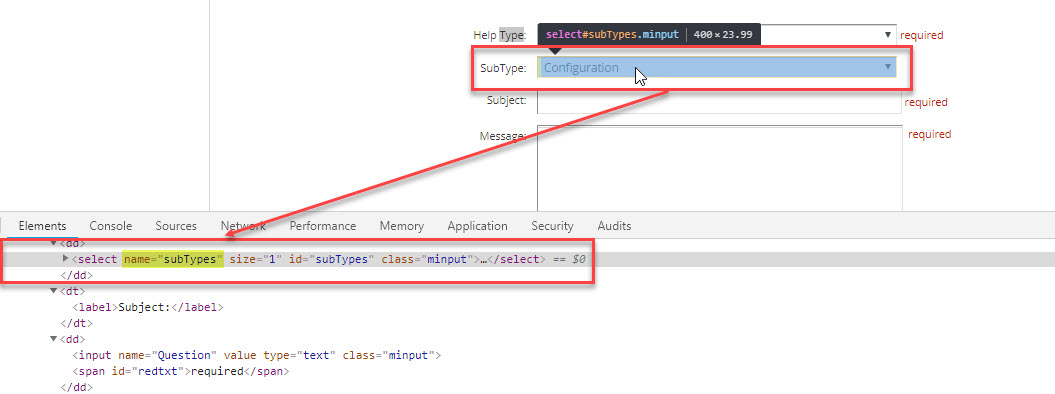
Let’s say, we want to monitor the submission of a website registration form with unique field values. First, we need to create an HTTP task with the corresponding Post request. Then, we will add parameters for the form fields in the request body (the Body tab) and convert their values to context variables.
To add a new parameter:
- Select Post in the URL settings.
- To provide the parameter in the request body, navigate to the Body tab.
- To work with a name-value collection, use the Detailed switcher at the top of the section.
- To convert the parameter value type to dynamic, click the Data Type icon in the Value column.
- In the Data Type window, select Dynamic.
- Specify the parameter name, as it appears in the web page code, and its value using the following syntax: context.<variable name>. Click Done.
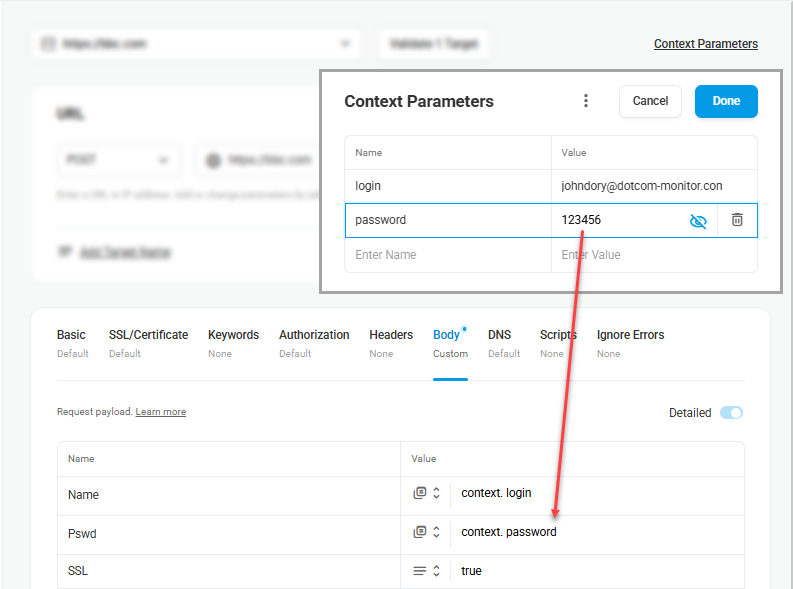
- To specify a default dynamic value for a context parameter, click Context Parameters on the target setting page and add the name-value pairs in the Context Parameter manager.
In the picture below, Name and Pwd request parameters are now going to take the values out of the context parameters named “login” and “password” respectively.