
The User Behavior profile determines how the system replicates real user interactions with your website. After recording user interaction steps, you can configure these settings under the User Behavior tab in the EveryStep Recorder or later while setting up your monitoring or load testing target.
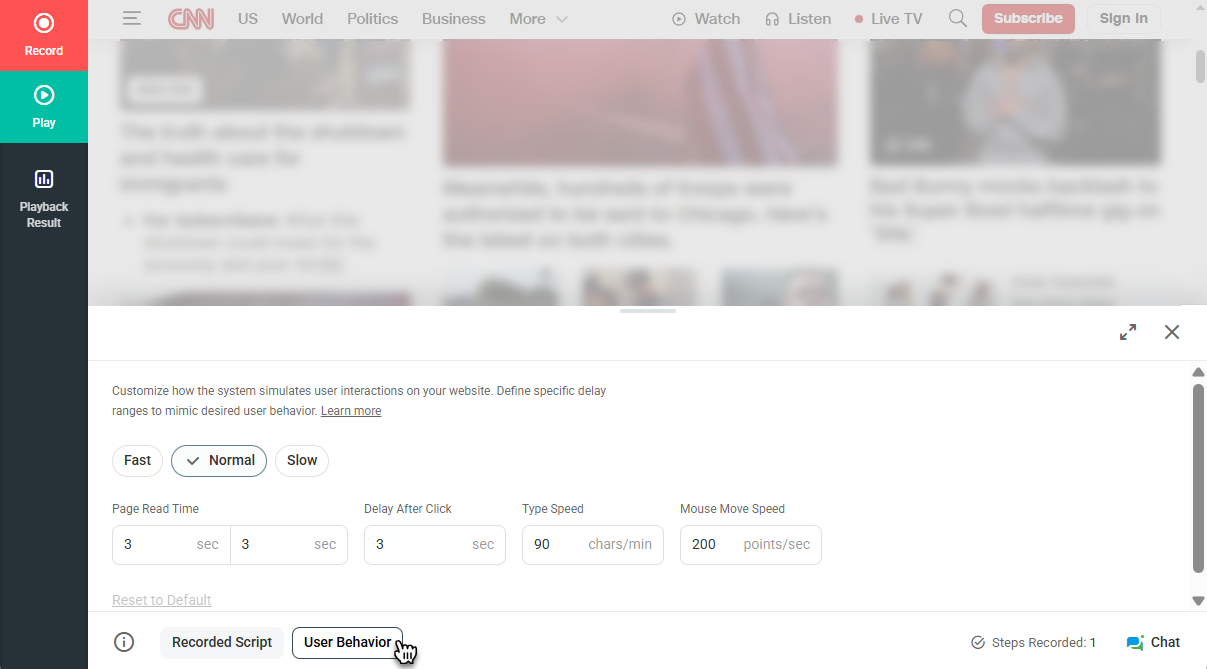
Behavior Presets
EveryStep Recorder provides several predefined user behavior profiles. These profiles simulate different interaction speeds and patterns to match typical user scenarios:
- Normal – Simulates standard user interaction, adding a 3-second delay between each action (such as navigating to a page “Navigating” or clicking a link “Go To“).
- Fast – Executes actions consecutively without delays, completing the script as quickly as possible.
- Slow – Adds a 7-second delay between actions to simulate a slower user experience on the target website.
Customizing User Behavior
You can customize the behavior settings to more accurately represent your actual user base. The following parameters are available:
- Page Read Time – Define a fixed or random delay (in seconds) between page interactions to simulate reading or viewing time.
- Delay After Click – Introduce a pause after each mouse click to simulate wait time.
- Type Speed – Adjust the typing speed (in characters per second) to simulate different user input patterns.
- Mouse Move Speed – Set the speed at which the cursor moves between elements to mimic real user behavior.
Reviewing Behavior Settings
After saving your script, you can further review or modify the User Behavior profile from your target configuration, under the User Behavior tab.