
この短いガイドでは、EveryStep スクリプトツールにプロキシを使用する際の問題について説明します。
- [コントロール パネル] の [管理ツール] にある [コンピュータの管理] を開きます > 。
- 「ローカルユーザーとグループ > 」「ユーザー」に移動します。
- ユーザーのパスワードを設定する “EverystepScripting”.
- 現在のウィンドウ セッションからログアウトします。
- 手順 3 で指定した”EverystepScripting”というユーザー名とパスワードでウィンドウにログインします。
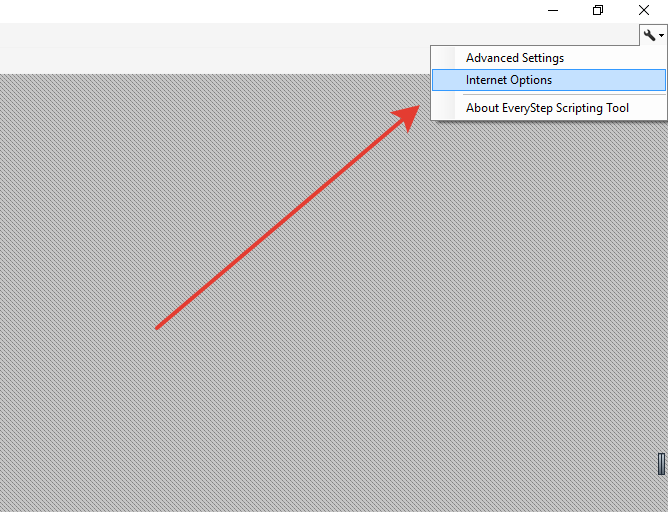
次の図に示すように、次の図に示すように、あなたは、EveryStepスクリプトツールを開き、内部メニューから直接プロキシ設定を編集することができます
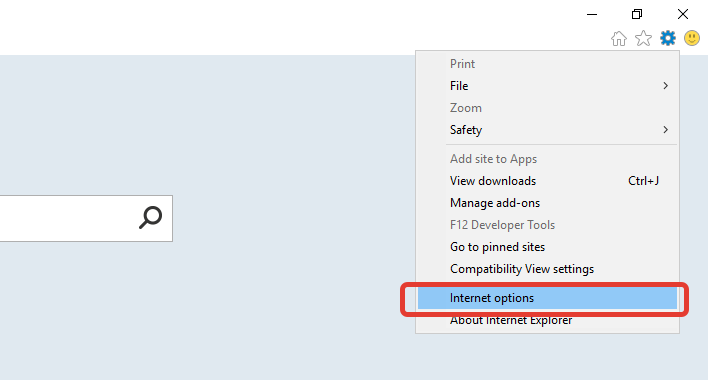
または、Internet Explorerを実行し、そこにプロキシ設定を指定します。
プロキシで認証が必要な場合は、次のコードを含むファイル “EveryStep スクリプト ツール.exe.config” ファイルを作成し、EveryStep スクリプト ツールのインストール ディレクトリ (C:\プログラム ファイル (x86)\Dotcom-Monitor\EveryStep スクリプト ツール) に保存します。
<?xml version="1.0"?>
<configuration>
  <configSections>
    <section name="appConfiguration" type="CommonUtils.Configuration.AppConfigurationReader, CommonUtils"/>
  </configSections>
  <system.net>
    <settings>
      <socket alwaysUseCompletionPortsForConnect="false"/>
    </settings>

    <defaultProxy enabled="true"></defaultProxy>
  </system.net>

  <appConfiguration>
    <Class Name="RecorderContext" Owner="*" TypeInfo="Assembly" Type="Dotcom.Proxy.Recorder">
      <Dotcom.Proxy.Recorder.RecorderContext>
        <RequireWCFProxyAuthentication>True</RequireWCFProxyAuthentication>
      </Dotcom.Proxy.Recorder.RecorderContext>
    </Class>
  </appConfiguration>
<startup><supportedRuntime version="v4.0" sku=".NETFramework,Version=v4.5"/>
</startup>
</configuration>