- Email Server Monitoring · SMTP
SMTP Monitoring for Mail Servers on Ports 25, 587 and 465
Dotcom-Monitor’s SMTP check connects to your mail server the way an email client, an application or another mail server does. It waits for the SMTP greeting, negotiates STARTTLS or implicit TLS, and can log in with a test account, including OAuth 2.0 for Exchange Online. Every step is timed against your response-time threshold.
Checks run as often as every minute from 33 locations worldwide, or from a private agent next to an internal relay. A failure is confirmed from a second location before anyone is paged.
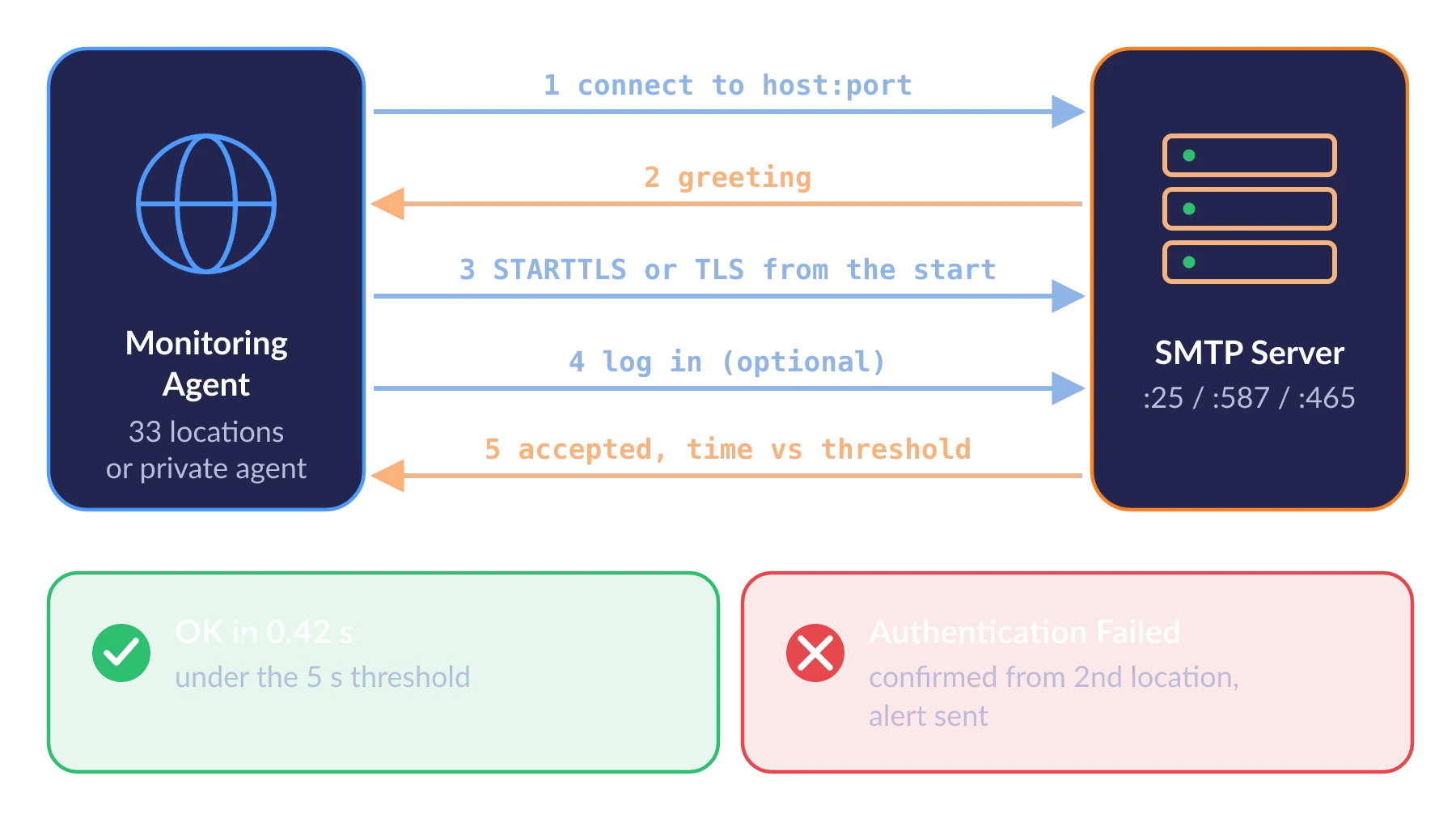
One SMTP check tests the connection, encryption and login your users and applications depend on. Values are illustrative.
None, STARTTLS, implicit TLS or auto
Shortest check interval
Monitoring locations in 18 countries, IPv4 and IPv6
Modern authentication for Exchange Online and Microsoft 365
What SMTP Monitoring Is
SMTP monitoring is the scheduled, automated testing that a mail server accepts SMTP connections, negotiates encryption and authenticates senders within an acceptable response time. A monitoring agent connects to the server’s host and port (usually 25, 587 or 465), waits for the SMTP greeting, starts TLS, optionally logs in with a test account, and records the total time and the result. Dotcom-Monitor runs this check as often as every minute from 33 locations or a private agent, confirms a failure from a second location, and alerts your team.
An SMTP server can fail in ways a ping or an open port does not show. The service hangs after accepting the TCP connection. The certificate on port 587 stops negotiating while port 25 keeps working. The service account your applications send with gets locked by a password policy, or Microsoft 365 stops accepting its basic-authentication login. Every one of these stops outgoing mail, and each one shows up in an SMTP check as a failed step with an error message.
The SMTP check does not send a message. It answers “can clients and other servers hand mail to this server right now?” To test that a message arrives in a mailbox, pair it with a round-trip email check. Both are part of email server monitoring, alongside POP3, IMAP and Exchange ActiveSync checks.
How an SMTP Check Runs
Each run follows the same sequence from every location you select. If any step fails or the whole exchange takes longer than the Time Validation Threshold, the run is an error.
Resolve the Hostname
The agent looks up the server name using the DNS Resolve Mode you chose. Custom DNS Hosts can map the name to a specific IPv4 or IPv6 address, which lets you test one node behind a shared name.
Connect to the Host and Port
A refused or timed-out connection is reported as an error straight away. If you leave the port empty, the default for the encryption mode is used: 587 for explicit TLS, 465 for implicit TLS, 25 for none.
Complete the SMTP Handshake
The agent waits for the server's greeting and exchanges the opening SMTP commands. A server that accepts the TCP connection but never answers fails here.
Negotiate Encryption
With explicit encryption the agent sends STARTTLS and upgrades the session. With implicit encryption TLS starts before the first SMTP byte. With Auto, TLS is used when the server advertises it.
Log In, If Login to Server Is On
The agent authenticates with the user name and password, or with an OAuth 2.0 token from the prepare script. It stops here and does not send a message.
Record the Result
The run stores a status, the total response time and, on failure, the error text. A failed run is checked again from a second location before an alert goes out.
What the result contains. Each run reports the total time for the whole exchange and whether it passed. It does not split that time into separate DNS, connect, TLS and login timings. Use the error text to see which step failed, and compare the total time across locations to spot a slow region.
Which SMTP Ports to Monitor
Each port is a separate service from the client’s point of view, with its own certificate handling and often its own authentication rules. Monitor each port your users, applications and partner mail servers connect to as its own target, so an alert names the one that failed.
Port | Who Connects | Encryption Setting | Login to Server |
|---|---|---|---|
587 Submission | Mail clients, applications, printers and scanners sending through your server | Yes explicit (STARTTLS) | On, with a test account. This is the login your users depend on. |
465 Submission | Clients and apps configured for TLS from the first byte | Yes implicit | On, with a test account |
25 MX / Relay | Other mail servers delivering mail to your domain; internal relays | None or Auto (Auto uses TLS when the server offers it) | Usually off: MX hosts accept mail without authentication |
Custom Port | Relays and appliances on a non-standard port, such as 2525 | Whichever mode the server uses | As the service requires |
Encryption options from the SMTP task reference. With None, credentials may cross the network only base64-encoded, so use None with Login to Server only on a trusted internal network.
SMTP Authentication Monitoring, Including OAuth 2.0 for Microsoft 365
Login to Server
With Login to Server off, the check confirms the server is up and speaking SMTP on that port. With it on, the check also proves the login works, which is what applications and users need to send.
The agent tries the mechanisms CRAM-MD5, LOGIN, PLAIN and SIMPLE over the unencrypted session first. If all of them fail, it upgrades to SSL/TLS and tries each one again. The check passes on the first mechanism that succeeds and reports an authentication error if none do.
- Use a dedicated test account. A user changing a password should not break the check, and failed monitoring logins should not lock out a person.
- Keep the password out of the task. Store it in the Secure Vault and reference it as a variable.
OAuth 2.0 for Exchange Online
Microsoft has deprecated basic authentication in Exchange Online. Where it is turned off, an SMTP monitor that logs in with only a user name and password fails. The SMTP task supports OAuth 2.0 modern authentication.
- Generate a token. Run the GetOAuthToken utility, sign in with the Microsoft 365 account the task uses, and grant access, or ask your mail administrator to grant it.
- Paste the prepare script. The utility turns the refresh token into a script. Paste it into the Prepare Script field on the task's Scripts tab and save.
Step-by-step guide: Using modern authentication for Exchange Online.
What SMTP Server Monitoring Catches
These are the SMTP failures that stop outgoing mail, what the people affected notice, and how the check reports each one.
Failure | What Users See | How the SMTP Check Reports It |
|---|---|---|
SMTP Service Stopped | Clients and apps cannot connect to send | Connection refused or timed out |
Service Hung After Connect | Send spins, then times out; the port still looks open | No greeting or handshake before the threshold |
TLS Negotiation Broken | Clients on 587 or 465 refuse to send or show certificate errors | Error during STARTTLS or the implicit TLS handshake |
Login Broken | Password prompts that never succeed; app send errors | Authentication error after every mechanism, in the clear and over TLS |
Basic Auth Turned Off by the Provider | Apps sending through Microsoft 365 start failing | Authentication error on a basic-auth task. Switch the task to OAuth 2.0 |
Slow Server | Sending takes many seconds; apps time out | Total response time above the Time Validation Threshold |
Firewall or Allow-List Change | One office, partner or region cannot send | Errors from some locations while others pass |
One Node Down Behind a Shared Name | Intermittent failures for some users | Error on the task mapped to that node with Custom DNS Hosts |
Internal Relay Down | Applications on the internal network stop sending | Error from the private agent inside the network |
SMTP Check vs TCP Port Check vs Round-Trip Email Check
Many uptime tools monitor a mail server with a TCP connection to port 25. That shows the port is open, not that SMTP, TLS or the login works.
TCP Port Check | SMTP Check | Round-Trip Email Check | |
|---|---|---|---|
Question | Does the port accept a connection? | Does the server speak SMTP, start TLS and accept a login in time? | Does a sent message arrive in the mailbox, and how fast? |
SMTP Greeting | No | Yes | Yes, as part of sending |
STARTTLS / Implicit TLS | No | Yes, or auto | Yes, Secure Connection setting |
Login | No | Optional, basic or OAuth 2.0 | Optional to send, required to retrieve |
Sends a Message | No | No | Yes, then deletes it |
Result | Connect status and time | Status, total time, error text | Delivery status, total send-to-retrieve time |
Best For | Non-mail services on a port | Every submission port and MX host, every minute | End-to-end delivery, every few minutes |
All three run in the same account. See port monitoring and the email server monitoring overview for POP3, IMAP, ActiveSync and round-trip checks.
Monitor Public SMTP Endpoints From 33 Locations and Internal Relays From a Private Agent
Public SMTP Endpoints From 33 Locations
Dotcom-Monitor’s monitoring network has 33 locations in 18 countries on 6 continents, with IPv4 and IPv6 nodes, available on every plan. Run the same SMTP check from several of them to see whether a failure is global or limited to one region or network path.
Many SMTP servers accept connections only from known hosts. Add the published monitoring location IPs to your allow list, or the check fails for a reason your users never see.
Internal Relays From a Private Agent
An internal relay that only your applications use, an on-premises Exchange connector or a smart host reachable only over VPN cannot be tested from the internet. Install a private agent on a machine inside the network and it runs SMTP checks against internal names and addresses, reporting over an outbound HTTPS connection. It appears in your account as one more location.
- Failures are confirmed from a second location. This is the default, and it filters out a single bad network route.
- Test each node separately. Map the shared hostname to each server's IP with Custom DNS Hosts, one task per node.
- Run inside and outside together. A private agent that passes while public locations fail points at the firewall or the internet path, not the server.
SMTP Alerts That Do Not Depend on Your Mail Server
Alert Channels
When the SMTP server is down, email alerts sent through it never arrive. Dotcom-Monitor sends confirmed failures to the channels you choose: email, SMS, phone call, Slack, Microsoft Teams, PagerDuty, ServiceNow, webhooks, SNMP traps and more than twenty integrations, with escalation if the first person does not respond. Each alert names the task, the server, the error and the locations that failed.
Reports
Every run writes a status and a total response time into your reports and dashboards: availability per SMTP endpoint for the period, response-time trends per location, and an error log. Scheduled summaries go out daily, weekly or monthly, and the data is available through the API. Maintenance windows keep planned patching or certificate renewals from paging anyone.
How to Set Up SMTP Monitoring
Create a Device and Choose the SMTP Task
In your Dotcom-Monitor account, create a device on the Internet Infrastructure platform and pick SMTP as the task type.
Enter the Hostname and Port
Use the name clients connect to, such as smtp.example.com, and the port: 587, 465, 25 or a custom one.
Choose the Encryption Mode
Yes explicit for STARTTLS, Yes implicit for TLS from the start, None, or Auto.
Turn On Login to Server for Submission Ports
Enter the test account's user name and password, or paste the OAuth 2.0 prepare script for Exchange Online.
Set the Time Validation Threshold
Pick the number of seconds after which a slow answer counts as an error.
Pick Locations, Frequency and Alert Recipients
Choose several public locations or a private agent, a check interval down to 1 minute, and who gets alerted. Add more tasks to the device for each port or MX host.
Full field reference: Add or edit an SMTP task. To create SMTP tasks from code, see the SMTP task API.
SMTP Monitoring Is Part of the Internet Infrastructure Plan
SMTP tasks are billed under Internet Infrastructure (ServerView), the plan that also covers POP3, IMAP, ActiveSync and round-trip email checks, DNS, SSL certificate, ping, port, FTP and VoIP/SIP. Each SMTP task is one target, so port 587, port 465 and each MX host are one target each. Pricing is a fixed monthly amount for the number of targets and the frequency you choose, and every plan includes alerting, reports and the API.
- 5 to 300 targets per plan
- Check intervals from 15 minutes down to 1 minute
- All 33 public locations included; private agents available for internal relays
- 30-day free trial with full platform access, no credit card
Email Server Monitoring
DNS Blacklist Monitoring
SSL Certificate Monitoring
SMTP Monitoring Questions
What Is SMTP Monitoring?
SMTP monitoring is the scheduled, automated testing that a mail server accepts SMTP connections, negotiates encryption and authenticates senders within an acceptable response time. A monitoring agent connects to the server’s host and port, waits for the SMTP greeting, starts TLS, optionally logs in with a test account, and records the total time and the result. Dotcom-Monitor runs the check as often as every minute from 33 locations or a private agent and alerts you when it fails.
How Do I Monitor an SMTP Server?
Create an SMTP task with the server’s hostname and port, choose the encryption mode (STARTTLS, implicit TLS, none or auto), turn on Login to Server with a test account if the port requires authentication, and set a response-time threshold in seconds. Then pick monitoring locations, a check interval and alert recipients. Add one task per port and per MX host, so each alert names the endpoint that failed.
Which SMTP Ports Should I Monitor?
Monitor every port that clients or other servers use. Port 587 with STARTTLS and port 465 with implicit TLS are the submission ports that users and applications send through, so monitor them with login on. Port 25 on your MX hosts is where other mail servers deliver your inbound mail, usually without authentication. Custom ports such as 2525 can be monitored the same way.
Does the SMTP Check Send a Test Email?
No. The SMTP check connects, completes the handshake, negotiates encryption and, if Login to Server is on, authenticates. It stops there and sends no message. To confirm that a message is delivered and how long delivery takes, add a round-trip email check, which sends a test message through your SMTP server and retrieves it from the mailbox over POP3 or IMAP.
Can SMTP Monitoring Check STARTTLS and SSL/TLS?
Yes. Choose Yes explicit to have the agent send STARTTLS and upgrade the session (default port 587), Yes implicit for TLS from the first byte (default port 465), None for an unencrypted session (default port 25), or Auto to use TLS whenever the server advertises it. A failed TLS negotiation is reported as an error with the failing step.
Which SMTP Authentication Methods Are Supported?
The SMTP task supports CRAM-MD5, LOGIN, PLAIN and SIMPLE, plus OAuth 2.0 modern authentication. It tries the mechanisms over the unencrypted session first, then upgrades to SSL/TLS and tries each again. The check passes on the first mechanism that succeeds and reports an authentication error if every one fails.
Can I Monitor SMTP for Microsoft 365 or Exchange Online?
Yes. Microsoft has deprecated basic authentication in Exchange Online, so use OAuth 2.0 there. Run the GetOAuthToken utility, sign in with the Microsoft 365 account the task uses, grant access or have your administrator grant it, and paste the generated prepare script into the task’s Prepare Script field. The check then logs in with the token instead of a password.
What Does an SMTP Check Report?
Each run reports a status (OK or error), the total response time for the whole exchange and, on failure, the error text, such as a refused connection, a TLS error or an authentication error. It does not break the time into separate DNS, connect, TLS and login timings. Reports show availability and response-time trends per location.
How Often Can SMTP Checks Run, and From Where?
SMTP checks can run every 1, 3, 5, 10 or 15 minutes from any of 33 public locations in 18 countries, with IPv4 and IPv6 nodes, or from a private agent inside your network. A failure is confirmed from a second location before an alert is sent.
Can I Monitor an Internal SMTP Relay That Is Not Exposed to the Internet?
Yes. Install a private agent on a machine inside your network. It runs SMTP checks against internal hostnames and IP addresses, reports to your account over an outbound HTTPS connection, and appears as one more monitoring location. Run it alongside public locations to tell an internal outage from a firewall or internet path problem.
Why Does My SMTP Check Fail When the Server Is Working?
The most common cause is a firewall or allow list that accepts SMTP connections only from known hosts. Add the published monitoring location IP addresses to it. Other causes are a test account that is locked or has an expired password, a response-time threshold set lower than the server’s normal answer time, or a port and encryption mode that do not match, such as Yes implicit on port 587.
How Much Does SMTP Monitoring Cost?
SMTP tasks are part of the Internet Infrastructure plan, which starts at $40 per month for 5 targets checked every 15 minutes and scales to 300 targets, with intervals down to 1 minute. Each SMTP task is one target, and the same plan covers POP3, IMAP, round-trip, DNS, SSL, port and FTP checks. Current tiers are on the pricing page, and the 30-day free trial needs no credit card.
Start Monitoring Your SMTP Servers
Start a 30-day free trial, add an SMTP check for port 587 and each MX host, and see the first results from around the world within minutes. No credit card required.