- Product · Internet Infrastructure Monitoring
Port Monitoring: Scheduled TCP Port and Telnet Checks From 33 Locations or Inside Your Network
telnet host port, on a schedule, with every result recorded. If the connection is refused, times out or the host is unreachable, the failure is confirmed from a second location and sent to your on-call channel with the error code, the location and the time it took.
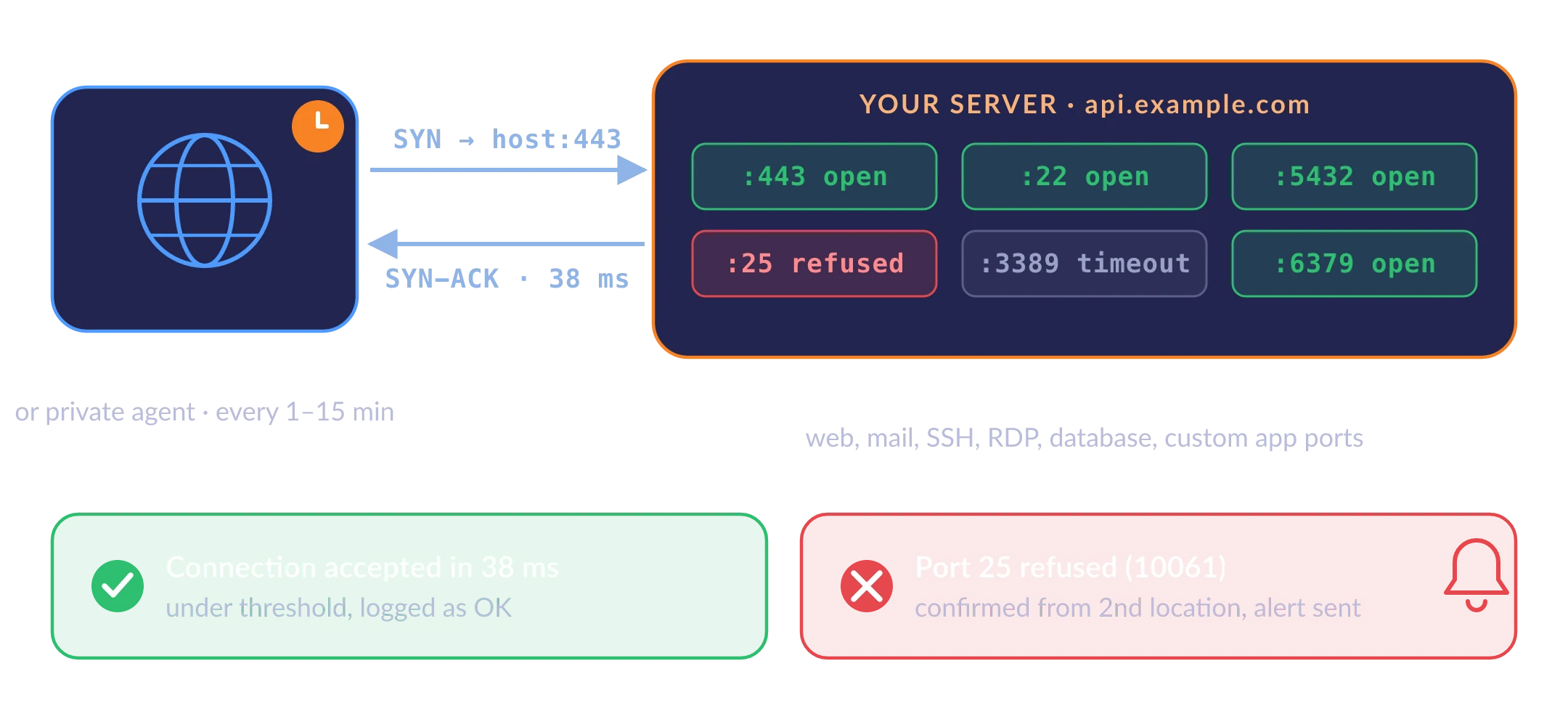
Connect to host:port, time the handshake, alert when a port stops accepting connections.
1–65535, standard or custom
Shortest check interval
Monitoring locations in 18 countries, IPv4 and IPv6
Locations confirm a failure before an alert is sent
What Port Monitoring Is and How Dotcom-Monitor Does It
Port monitoring is the scheduled, automated checking that a network service is accepting connections on a specific TCP port. A monitoring agent attempts a TCP connection to host:port, the same way the telnet command does. If the server completes the handshake within the time limit, the port is open and the service behind it is listening; the connection is closed and the result and connect time are recorded. If the connection is refused, the host is unreachable or nothing answers before the threshold, the check fails, is re-verified from another location and raises an alert. Dotcom-Monitor runs this check from 33 locations worldwide or from a private agent inside your network, as often as every minute.
A port check sits between a ping and a full application check. Ping tells you the host is up. HTTP(S) monitoring tells you a web application responds correctly. Port monitoring tells you that a specific service (SSH on 22, SMTP on 25, RDP on 3389, PostgreSQL on 5432, an in-house application on 8443) is bound to its port and reachable from where your users and systems connect. It works for any TCP service, including the many that have no HTTP endpoint to test. Some teams call this network port monitoring or TCP monitoring; on this page the terms are used interchangeably.
The same words are used for other things. This page is about monitoring the availability of TCP service ports over the network. It is not switch port mirroring (SPAN), which copies traffic from a physical switch port to an analyzer; it is not serial or COM port monitoring software; and it is not port scanning, which enumerates every port on a host to find what is open. A Dotcom-Monitor port monitoring task tests the ports you name, on the schedule you set, and tells you when one of them stops answering.
How a Port Monitoring Check Runs
Each check is one TCP connection attempt from a Dotcom-Monitor agent to your host and port: resolve, connect, time it, classify the result, report. It repeats on the interval you set, as often as every minute.
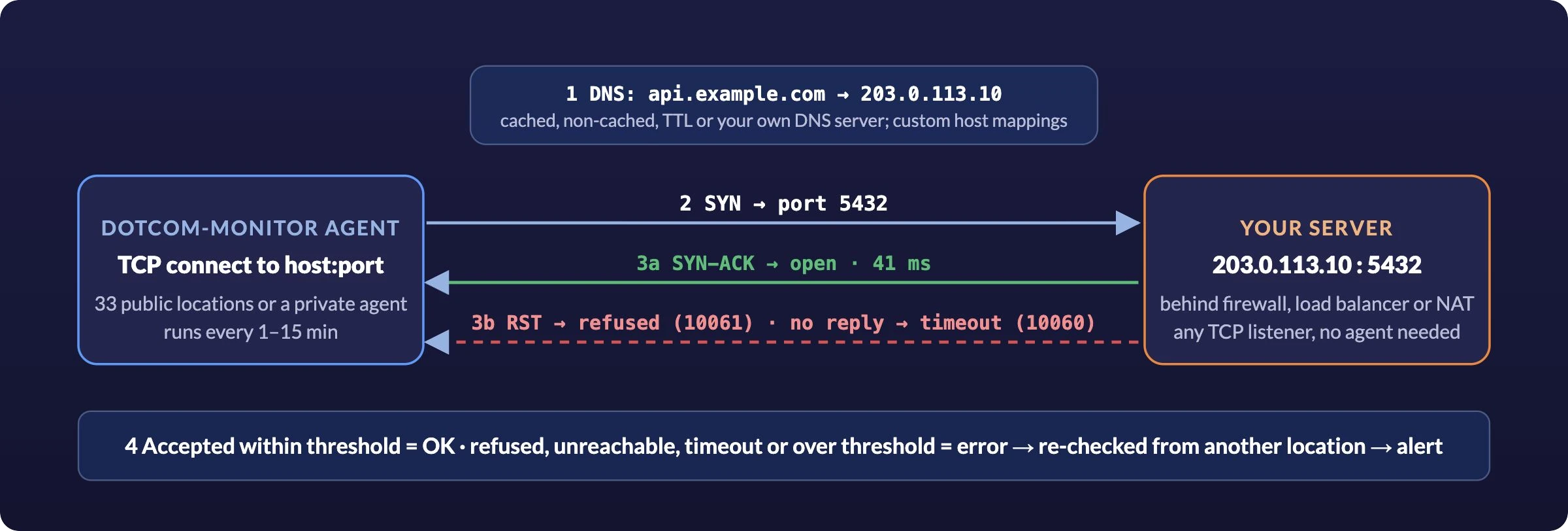
A port check is a TCP handshake, not a login or a request. Nothing is installed on the server, no credentials are needed, and the service sees one short connection per check.
The Agent Resolves the Hostname
You give the task a hostname or an IP address and a port number. If you enter a name, the agent resolves it using the DNS mode you chose: its own cached resolver, a fresh lookup every time, caching by TTL, or an external DNS server you specify. Custom DNS host mappings point a public name at a specific IP. Use them to test one node behind a load balancer, or an internal address from a private agent. Both IPv4 and IPv6 resolution are supported.
It Opens a TCP Connection to the Port
The agent sends a SYN to host:port and waits for the server's SYN-ACK, the first two steps of the TCP three-way handshake. This is what telnet api.example.com 5432 does before it prints "Connected to". The agent does not log in, send a request or read a banner, so the check is safe to run against any service, including databases and proprietary protocols.
It Times the Result Against Your Threshold
The Time Validation Threshold is the maximum number of seconds the agent waits. A connection accepted inside the threshold is OK and its connect time is stored. A connection that is accepted but takes longer than the threshold is an error (code 300, duration exceeded). A saturated server or a congested path shows up this way before it becomes an outage.
It Classifies the Failure
A refused connection means the host is up but nothing is listening on that port, or a firewall actively rejected it (Windows socket code 10061). A timeout means packets are being dropped somewhere on the path or by a firewall configured to drop silently (10060). Unreachable host or network (10065, 10051) and DNS resolution failures (12007) are reported separately. Each code points to a different first place to look.
Errors Are Verified, Then Alerted
Before an incident opens, the platform re-runs the failed check from another monitoring location. If that one fails too, the alert goes out through your alert channels (email, SMS, phone call, Slack, Microsoft Teams, PagerDuty, webhook and others) with the error code, the locations that failed and the timings. If the second location succeeds, the event is logged in the report as a single-location error and nobody is paged. A traceroute from the failing location is captured automatically for the error report.
TCP Port Monitoring Settings
A TCP port monitoring task is one device in your Dotcom-Monitor account. You give it the host, the port and a time limit, pick the locations it should run from and how often, and it starts on the next interval. The check works at the transport layer, so there is nothing to install on the target and no protocol settings to configure. The full field reference is in the knowledge base: Telnet Port Availability task setup.
- One task per host:port. Monitor three ports on one server as three tasks, each with its own threshold, schedule and alert rules. Group them under one device so a host-wide outage produces one incident instead of three.
- Standard and custom ports. Any port from 1 to 65535. The well-known ports are the common case, but the check is just as useful for an application listening on 8443, a message broker on 5672 or a licensing daemon on a port nobody else monitors.
- Connect time on every check. Each successful connection is timed and stored per location, so you have a response-time history for a service that has no HTTP endpoint, and a threshold that flags it when it slows down.
-
Created by hand or by API. The task type is
Connection — Port availability (Telnet),Task_Type_Id 9in the configuration API. A script can create one task per port from your inventory and keep the list in sync.
# what you run by hand, once
$ telnet api.example.com 443
Trying 203.0.113.10…
Connected to api.example.com.
$ telnet mail.example.com 25
Trying 203.0.113.25…
telnet: Unable to connect to remote host: Connection refused
# what the port monitoring task runs, every minute, from 33 locations
[Frankfurt] api.example.com:443 OK 38 ms
[Virginia] api.example.com:443 OK 12 ms
[Singapore] mail.example.com:25 ERR 10061 Connection refused
[Frankfurt] mail.example.com:25 ERR 10061 Connection refused alert sent
A port monitoring task runs the telnet host port test on a schedule and records each result and connect time. Illustration; the product UI shows the same data in reports.
Setting | What you enter | What it lets the check verify |
|---|---|---|
Hostname | The server address: a domain name or an IPv4 / IPv6 address | The host your clients actually connect to, or one specific node behind a shared name |
Port | The TCP port number of the service, 1–65535 | That this particular service is bound and accepting connections, not just that the host is up |
Time Validation Threshold | Maximum seconds to wait for the connection to be accepted | Slow handshakes are flagged as errors, as well as hard failures; also sets how quickly a silent drop is reported as a timeout |
DNS Options | DNS Resolve Mode (Device Cached, Non-Cached, TTL Cached, External DNS Server) and Custom DNS Hosts | Tests through the name your users resolve, through a resolver of your choice, or against a fixed IP for a name that does not resolve publicly |
Monitoring locations | Any of the 33 public locations, a private agent, or both | Whether a port is closed for everyone or blocked only on one path; internal ports from inside the network |
Frequency | Every 15, 10, 5, 3 or 1 minute | How quickly a closed port is noticed; 1-minute checks detect most failures within two to three minutes including verification |
Ports Teams Monitor Most Often
Any TCP service can be monitored. These are the ports that come up most, with the failure each check is there to catch. Our glossary has a longer reference on TCP ports and their uses.
Port | Service | What the port check tells you that nothing else does |
|---|---|---|
22 | SSH | Admins can still reach the host after a firewall or sshd change. Usually discovered to be broken when someone needs it. |
25 · 465 · 587 | SMTP | The mail relay accepts connections from outside. Pair with email server monitoring for a full send/receive test. |
80 · 443 | HTTP / HTTPS | The listener is up even when the application behind it is being redeployed; separates “web server down” from “application error” in the timeline. |
110 · 143 · 993 · 995 | POP3 / IMAP | Mailbox access ports are open for clients, including the TLS variants. |
389 · 636 | LDAP / LDAPS | The directory your logins depend on is reachable from the networks that authenticate against it. |
1433 · 3306 · 5432 · 1521 | SQL Server · MySQL · PostgreSQL · Oracle | The database listener is accepting connections from the application tier, checked from a private agent on that tier. |
3389 | RDP | The remote desktop gateway or jump host is reachable before someone’s shift starts. |
5060 · 5061 | SIP | The PBX signaling port is open. For registration and test calls see VoIP / SIP monitoring. |
6379 · 5672 · 9092 | Redis · RabbitMQ / AMQP · Kafka | Caches and brokers that have no HTTP interface to check when a security group or bind address changes. |
8080 · 8443 · custom | Application ports | In-house services, agents, licensing servers and APIs behind non-standard ports, from wherever their clients connect. |
Telnet Monitoring: An Automated telnet host port Check
Network and system administrators have used telnet host port as a connectivity test for decades. If Telnet reports “Connected”, the port is open and something is listening. If it reports “Connection refused” or hangs, it is not. Dotcom-Monitor’s Telnet monitoring task automates that test. In the product and the API the task is named Port availability (Telnet), because it performs the connection step of a Telnet session against whatever port you specify, and stops there. That is why it works for any TCP service, not only Telnet servers.
The monitor does not negotiate Telnet options, log in, or run commands, and it reads nothing from the service. It only opens the connection, so it can run against a database port, a mail server or a proprietary application without sending the service anything it might log as an error or treat as a client. To verify that a device managed over Telnet still answers on its management port, set the port to 23 and the task tells you the moment it stops accepting sessions. For what the Telnet protocol itself is and how it differs from SSH, see our glossary entry on Telnet.
When the Telnet Check Is the Right Tool
- Legacy equipment on port 23. Older switches, PDUs, serial console servers and industrial controllers that are still managed over Telnet. Monitor the management port from a private agent on the same network.
- Confirming a firewall change. After a rule edit, the next scheduled check from outside shows whether the port is still reachable, without anyone opening a terminal.
-
A service with no other probe. If the only way you know it is up is that
telnetconnects, that is the test the task runs, every minute, with history. - Ruling out the network. A Telnet check that passes from a private agent and fails from the public locations puts the problem on the edge, not the server.
Telnet monitoring, TCP port monitoring and port availability monitoring are the same task. Network engineers call it a Telnet check, developers call it a TCP connect test, and monitoring vendors call it port monitoring. On Dotcom-Monitor it is one task type with one price.
Outages a Port Check Catches That a Ping Misses
Most service outages leave the host perfectly pingable. The process crashed, the listener moved, a rule changed. These are the failures port monitoring is for, with the error you will see in the alert.
Service Crashed, Host Is Fine
The daemon died or failed to restart after a deploy. Ping succeeds, the port actively refuses. The alert names the port, so the on-call engineer restarts the right service.
Firewall or Security Group Change
A tightened rule, a cloud security group edit or a new WAF policy starts dropping packets to a port that was open yesterday. The check times out from outside while everything inside still works.
Listener Bound to the Wrong Interface
After a config change the service listens on localhost or one NIC only. Local tests pass; the check from the network the clients use fails.
Connection Backlog Saturated
Under load the server stops completing handshakes promptly. Connect time climbs past your threshold and shows up as errors before users see failed connections.
Port Blocked on One Path Only
An ISP or a transit provider filters a port in one region. Checks from 33 locations show which geographies are affected and which are not, before the first ticket.
Reboot Without the Service
A patch window reboots the host and the service does not come back as enabled. The host answers ping within a minute; the port never reopens. The next check tells you.
Name Resolves to the Wrong Place
A DNS change points the service name at a host that has nothing on that port. With Non-Cached resolution the check follows the record change and fails the moment the record does.
Route or VPN Gateway Down
The path to an internal subnet or a site-to-site VPN drops. A port check against a host on the far side, run from a private agent, is the first thing to notice.
Check Public Ports From 33 Locations, and Internal Ports From Inside Your Network
Public Services: From Where Your Users Are
Dotcom-Monitor’s monitoring network has 33 locations in 18 countries on 6 continents, with IPv4 and IPv6 nodes, and every location is available on every plan. Running one port check from several of them shows whether the port is closed for everyone or blocked on one path only. The locations have published IP addresses, so a firewall that restricts a port by source can allow the monitoring nodes while staying closed to everyone else.
Internal Services: From a Private Agent
Database listeners, LDAP, message brokers and management ports should not be reachable from the internet, and a public check against them should fail. To monitor them, install a private agent on a Windows or Linux machine inside the network. It runs the same port task against internal names and addresses, needs only an outbound HTTPS connection to report, and appears in your account as one more location. The Protocol Edition, which covers TCP port checks along with ping, DNS and the other infrastructure tasks, starts at $4.95 per agent per month.
- Run both against the same host. A public location and a private agent checking the same port separates "the service is down" from "the path to the service is down".
- Test individual nodes behind a load balancer. Use Custom DNS Hosts to map the service name to each backend's IP in separate tasks, so one failed backend is visible even while the VIP keeps answering.
- IPv6 as well as IPv4. Enter an IPv6 address or let a dual-stack location resolve a AAAA record, and confirm the port is open on both stacks.
Alerts With the Error Code and a Connect Time History for Every Port
Verified Alerts
A failed connection from one location can be one bad route. By default Dotcom-Monitor requires a second location to confirm the failure before an incident opens, and re-runs the task from every assigned location when an error is first seen. Only a confirmed failure reaches your alert channels: email, SMS, phone call, Slack, Microsoft Teams, PagerDuty, ServiceNow, webhooks, SNMP traps and more than twenty integrations, routed through escalation schedules to the next person if the first does not acknowledge. The alert carries the host, the port, the error code and description, the locations that failed and how long each attempt took.
Reports and SLA Evidence
Every check writes a result and a connect time into your reports and dashboards: availability for the period, connect-time trend per location, and an error log with the code for each failure, including the traceroute captured at the time. Scheduled summary reports go out daily, weekly or monthly, and the data is available through the API for your own tooling.
Everything the Platform Gives Every Monitor
- Scheduling from every minute to every 15 minutes per task, with maintenance windows so a planned reboot does not page anyone.
- Filters that require a failure to repeat, to occur from N locations or to last a set time before an alert fires, and that can ignore specific error codes.
- Device grouping so several ports on one host roll up into one device and one incident.
- Reports and dashboards shared with your team or white-labeled for the clients of an MSP.
- Configuration API to create a port task per host from your inventory and keep it in sync, and to pull results.
- One account for port checks alongside DNS, SSL certificate, ping, traceroute, email, FTP and website monitoring. A closed port and a failed login appear on the same status board.
Port Monitoring vs Ping, Traceroute, HTTP and UDP Checks
Each infrastructure check answers one question. Most teams run a port check next to at least one of the others. The table shows where each fits and which one this page covers.
TCP port monitoring This page | Ping (ICMP) | Traceroute | HTTP(S) / web | UDP task | |
|---|---|---|---|---|---|
Question | Is this service listening and accepting connections on its port? | Is the host reachable at all? | Where along the path is the problem? | Does the web application respond correctly? | Does a UDP endpoint respond, or at least not error? |
Layer | Transport (TCP handshake) | Network (ICMP echo) | Network (hop by hop) | Application (request and response) | Transport (UDP datagram) |
Works when | The service is any TCP listener, including ones with no HTTP interface | ICMP is not filtered on the path | You need the failing hop, not just the failure | The service speaks HTTP and you want content or status validation | The service is DNS, SIP, RTP, NTP or another UDP protocol |
Blind spot | What the service returns after connecting | Whether any service is actually up | Whether the service on the end answers | Non-HTTP services | Silence is reported as OK, by the nature of UDP |
Typical pairing | Ping on the host, HTTP on the app, traceroute captured on failure | A port check on each service | Automatic on any port-check error | A port check on 443 to separate listener from application | A TCP port check on the same host’s management port |
Learn more |
Running the three network checks together. Ping, port and traceroute are all part of the same network monitoring plan. When the port check fails and ping passes, the service is down. When both fail, the host or the path is down, and the traceroute attached to the alert shows which.
Port Monitoring Is Part of the Internet Infrastructure Plan
Port tasks are billed under Internet Infrastructure (ServerView), the same plan that covers DNS, SSL certificate, ping, traceroute, FTP, email server and VoIP/SIP checks. One target is one host:port task; mix port targets with any of the others in the same plan. Pricing is a fixed monthly amount for the targets and frequency you choose, not per check, and every plan includes alerting, reports and the API.
- 5 to 300 targets per plan
- Check intervals from 15 minutes down to 1 minute
- All 33 public locations included; private agents from $4.95 per agent per month for internal ports
- 30-day free trial with full platform access, no credit card
Ping Monitoring
ICMP reachability and latency for the hosts behind the ports, from the same locations.
Network Monitoring
Ping, traceroute and port checks together, outside in and inside out.
Private Agents
Run the same port task from inside your firewall against database, LDAP and management ports.
Port Monitoring Questions
What Is Port Monitoring?
Port monitoring is the scheduled, automated checking that a network service is accepting connections on a specific TCP port. A monitoring agent attempts a TCP connection to the host and port; an accepted connection means the service is listening, and a refused, unreachable or timed-out connection means it is not. Dotcom-Monitor runs the check from 33 locations worldwide or from a private agent inside your network, as often as every minute, records the connect time of every attempt and alerts you when a port stops answering. It is distinct from switch port mirroring, serial port monitoring and port scanning, which use the same words for different things.
What Is TCP Port Monitoring, and Is It Different From Port Monitoring?
They are the same thing. Almost every service port that matters to availability (web, mail, SSH, RDP, databases, message brokers, application servers) is a TCP port, so “port monitoring” in practice means TCP port monitoring: a connection attempt that succeeds only if the server completes the TCP handshake. UDP ports work differently and are covered by a separate task, described below.
What Is Telnet Monitoring? Does It Use the Telnet Protocol?
Telnet monitoring is the automated version of the telnet host port test administrators use to see whether a port is open. Dotcom-Monitor’s task is named Port availability (Telnet) because it performs the connection step of a Telnet session against any port you specify, and stops there. It does not negotiate Telnet options, log in or send commands, and it reads nothing from the service, so it is safe to run against databases and proprietary applications. To monitor a device managed over Telnet, set the port to 23. For the protocol itself, see the glossary entry on Telnet.
How Is Port Monitoring Different From Port Scanning?
A port scanner probes a range of ports on a host, often all 65,535, to discover what is open; it is a one-time security or inventory tool. Port monitoring tests the specific ports you already know should be open, on a schedule, with history and alerting, to tell you when one of them stops accepting connections. A monitoring task touches one port per check and never enumerates others.
Which Ports Should I Monitor?
Start with every port a customer or another system connects to directly: 443 and 80 for web, 25, 465 and 587 for outbound mail, 993 and 995 for mailbox access, 5060 or 5061 for SIP. Then add the ports your own staff depend on, such as 22 for SSH and 3389 for RDP, and the internal dependencies that have no other check, such as database listeners (1433, 3306, 5432, 1521), LDAP (389, 636), Redis (6379) and message brokers (5672, 9092), monitored from a private agent on the network that uses them. Any TCP port from 1 to 65535 can be a target.
What Is the Difference Between “Connection Refused” and “Timeout” in an Alert?
Connection refused (error 10061) means the host answered and actively rejected the connection: the host is up, but nothing is listening on that port, or a firewall is configured to reject rather than drop. Look at the service first. A timeout (10060) means no answer came back inside the Time Validation Threshold: packets are being dropped by a firewall, a security group, a routing problem or an overloaded server. Look at the path and the rules first. Unreachable host or network (10065, 10051) and DNS failures (12007) are reported with their own codes, and a connection that succeeds but takes longer than your threshold is reported as error 300.
Does Dotcom-Monitor Monitor UDP Ports?
Yes, with a separate UDP task that has the same Hostname, Port, threshold and DNS settings. Because UDP has no handshake, the semantics differ: the task sends a datagram and treats the absence of an error, such as an ICMP port-unreachable message, as success, even if the service sends nothing back. It is useful for DNS, SIP, NTP and media services, but it cannot prove a UDP service is processing requests the way a TCP handshake proves a listener exists. Setup details are in the knowledge base under UDP task.
Can I Monitor Ports That Are Not Exposed to the Internet?
Yes, with a private agent: the monitoring software installed on a Windows or Linux machine inside your network. It runs the same port task against internal hostnames and addresses, needs only an outbound HTTPS connection to report results, and appears in your account as an additional location with the same alerts and reports. The Protocol Edition, which includes TCP port checks, starts at $4.95 per agent per month.
Can the Check Confirm That a Port Is Closed?
No. The task treats an accepted connection as success and a refused or unanswered one as an error, so it is designed to tell you when a port that should be open stops answering. It is not a compliance check for ports that must stay closed; use a scheduled port scan or your firewall’s audit tooling for that.
How Often Does It Check, and From Where?
Every 15, 10, 5, 3 or 1 minute, per task. Each task runs from the public monitoring locations you select, from a private agent inside your network, or both; each location reports its own result and connect time. With 1-minute checks and the default second-location verification, most failures are alerted within two to three minutes of the port closing.
Is There a Free Port Monitoring Tool?
For a one-off check, telnet, nc or an online port checker will tell you whether a port is open right now. They do not run on a schedule, test from more than one location, keep history or alert anyone. Dotcom-Monitor’s Free plan includes port monitoring at 5-minute intervals from two locations with email alerts, and the 30-day free trial gives full platform access to every check type with no credit card.
How Much Does Port Monitoring Cost?
Port tasks are part of the Internet Infrastructure plan, which starts at $40 per month for 5 targets checked every 15 minutes and scales to 300 targets, with intervals down to 1 minute. A target is one host:port task, and the same plan covers DNS, SSL, ping, traceroute, FTP, email and VoIP/SIP checks, so port monitoring rarely needs a plan of its own. Current tiers are on the pricing page.
Start Monitoring the Ports Your Services Depend On
Start a 30-day free trial, add a port task with a host and a port, and see the first connect-time results from around the world within minutes. No credit card required.
Full platform access during the trial: all check types, no credit card required.