- Product · Internet Infrastructure Monitoring
Email Server Monitoring for SMTP, POP3, IMAP, Exchange ActiveSync and Round-Trip Delivery
Dotcom-Monitor checks your mail servers the way your users and other mail systems reach them. It connects to SMTP, POP3, IMAP and Exchange ActiveSync, logs in with a test account, and sends a test message through the full mail path to confirm delivery. Checks run as often as every minute from 33 locations worldwide or from a private agent inside your network.
When a server refuses connections, rejects a login, answers too slowly or a message does not arrive in time, the failure is confirmed from a second location and sent to your on-call channel.
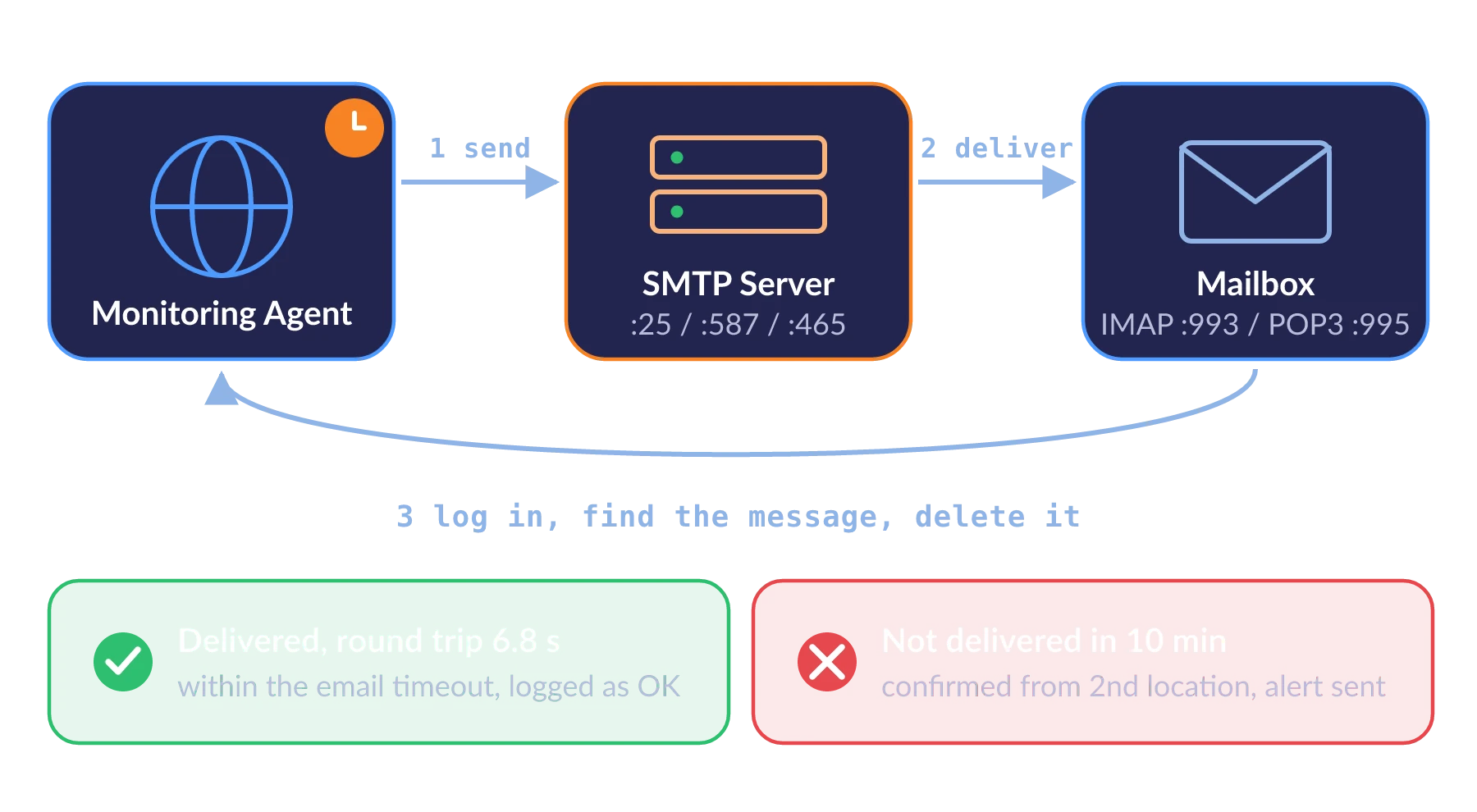
One round-trip check covers your SMTP server, your mailbox server and the path between them. Values are illustrative.
SMTP, POP3, IMAP, ActiveSync and round-trip
Shortest check interval
Monitoring locations in 18 countries, IPv4 and IPv6
Modern authentication for Exchange Online and Microsoft 365
What Email Server Monitoring Is and How Dotcom-Monitor Does It
Email server monitoring is the scheduled, automated testing that a mail system can accept, deliver and hand out email. A monitoring agent connects to the server on its mail protocol (SMTP for sending, POP3 or IMAP for retrieving, Exchange ActiveSync for mobile and Outlook clients), optionally logs in with a test account, and times each step against a threshold. A round-trip check also sends a test message through your SMTP server and retrieves it from the destination mailbox to confirm delivery. Dotcom-Monitor runs these checks from 33 locations worldwide or from a private agent inside your network, as often as every minute, and alerts you when one fails.
Most mail outages do not take the whole server down. A TLS certificate expires on port 587 while port 25 keeps working. A password policy locks out the service account your apps use to send. A queue backs up and messages arrive forty minutes late while every port still answers. A port check sees none of these. Email server monitoring tests the protocol conversation, including encryption and authentication. The round-trip check measures whether a sent message arrives and how long delivery takes.
Email server monitoring and email service monitoring use the same checks. If you run the mail server (Microsoft Exchange, Postfix, Exim, hMailServer, MDaemon or another mail server that follows the SMTP, POP3 and IMAP standards), you monitor the server. If your mail is hosted (Microsoft 365, Google Workspace or a hosting provider’s mail service), you monitor the service. The SMTP, IMAP, ActiveSync and round-trip checks run against the provider’s endpoints with your test account and report a problem before the provider’s status page does.
Not employee email monitoring. This product does not read, archive or scan anyone’s messages. It logs in to dedicated test mailboxes you create for monitoring, sends its own test messages and deletes them after they are found.
One Check for Each Part of the Mail Path
Each task type is a separate target with its own schedule, thresholds and alerts. Use the protocol checks to find which service failed, and the round-trip check to confirm mail is moving end to end.
SMTP Monitoring
Connects to your outgoing mail server, completes the SMTP handshake with or without TLS, and optionally authenticates. Proves the server is accepting connections and logins within your response-time threshold.
POP3 Monitoring
Connects to the POP3 service, negotiates STLS or implicit TLS, and optionally logs in. Proves users and applications that download mail over POP3 can reach and open their mailbox.
IMAP Monitoring
The same task as POP3 with the IMAP4.1 protocol selected: connect, STARTTLS or implicit TLS, optional login, response time against a threshold. Covers the protocol most desktop and mobile clients use.
Exchange ActiveSync Monitoring
Acts as a mobile device: signs in to a mailbox over Exchange ActiveSync, sends a message, confirms it was delivered and deletes it. Works with on-premises Exchange and with Exchange Online through modern authentication.
Round-Trip Email Monitoring
Sends a test message through your SMTP server (or straight to the domain’s MX records), then logs in over POP3 or IMAP and waits for it to arrive. Proves end-to-end delivery and measures how long it took.
Settings on Every Task
Response-time threshold, DNS resolve mode and custom DNS host mappings (IPv4 and IPv6), optional C# prepare and post scripts, scheduling from 1 to 15 minutes, failure verification from multiple locations, and alerts and reports.
How Email Round-Trip Monitoring Works
The round-trip task (SMTP-POP3 in the product) sends a test email and checks that it arrived, the way a person would.
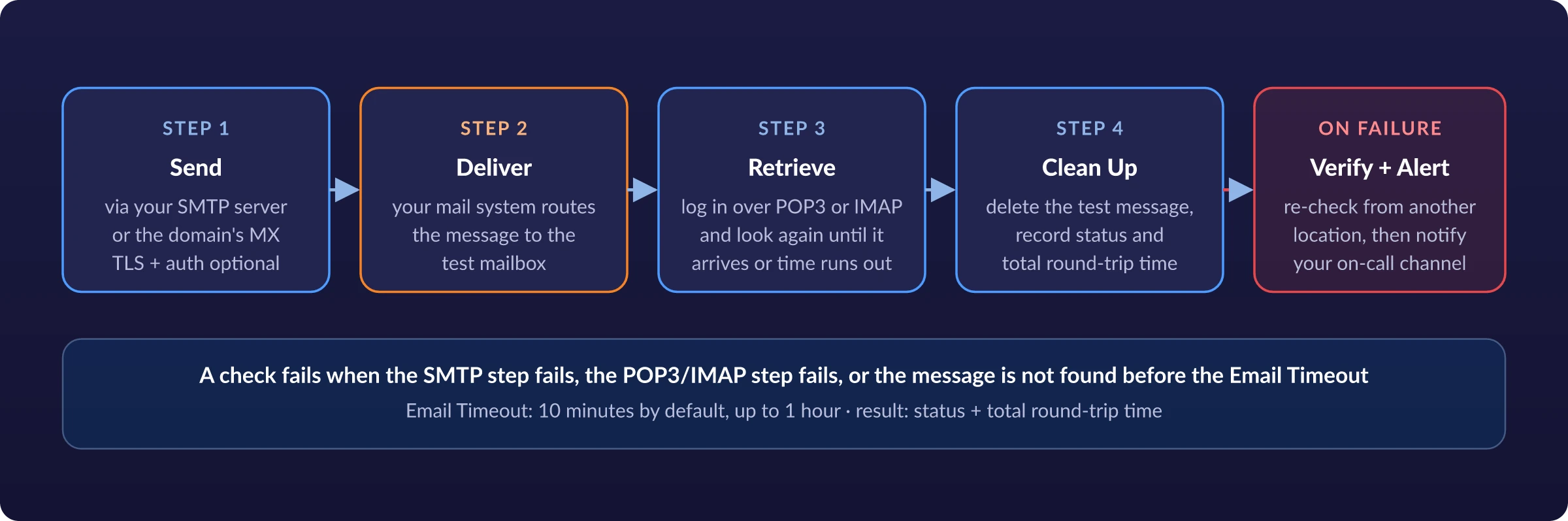
One round-trip check, from send to cleanup. The agent keeps checking the mailbox until the message arrives or the Email Timeout expires.
The Four Steps in Text
Send
The agent connects to the Target SMTP Server you name, or, with Send Using MX Record on, looks up the destination domain's MX records and tries them in preference order. It negotiates encryption (STARTTLS, implicit TLS, none or auto), authenticates if you set credentials (basic or modern authentication), and submits a test message to the address in Send Email to.
Deliver
Your mail system accepts the message, applies its filtering and routing, and delivers it to the destination mailbox. Queue delays, misrouted connectors and filtering problems appear in this step, which port and protocol checks do not test.
Retrieve
The agent logs in to the Target Mail Server over POP3 or IMAP and looks for the test message, and keeps looking until the message is found or the Email Timeout expires.
Clean Up and Report
The test message is deleted. The result is OK with the total round-trip time, or an error naming the step that failed. A failure is re-checked from another location and then alerted.
Three Ways to Point the Test
The send and retrieve endpoints decide which part of your mail flow is tested. A third-party mailbox such as Gmail makes the message cross the public internet, like mail from your customers and partners.
Test | Send Through | Retrieve From |
|---|---|---|
Outbound | Your SMTP server, to an external mailbox | The external mailbox (POP3/IMAP) |
Inbound | An external SMTP server, to your mailbox | Your POP3/IMAP server |
Both | Your SMTP server, to an external mailbox that auto-forwards back to you | Your POP3/IMAP server |
Round-Trip Task Settings
Setting | What It Does |
|---|---|
Send Email To | The destination address for the test message. Use a dedicated mailbox per task and leave it otherwise untouched; test messages are deleted automatically after they are found. |
Send Using MX Record | Yes: resolve the domain’s MX records and try them by preference, lowest number first; an error is raised only if every MX host fails. No: send through the Target SMTP Server. |
Target SMTP Server | Hostname or IP with an optional port. Defaults: 25 for SMTP, 465 for SMTPS. |
Secure Connection (SMTP) | Yes explicit (STARTTLS, port 587), Yes implicit (TLS from connect, port 465), None (port 25) or Auto (TLS when the server offers it). |
Authorization | Optional. Modern Authentication (OAuth 2.0 token for Exchange Online) or Basic Authentication (username and password). |
From Email | System Default (the agent’s address, or the Send Email to address when SMTP authentication is used) or Custom (any From address, for routing or filtering rules that depend on the sender). |
Operation Timeout | Separate timeouts, in seconds, for the SMTP send step and the POP3/IMAP retrieve step. |
Target Mail Server | POP3 or IMAP (v4.1), host and optional port, with its own Secure Connection setting and Username/Password. |
Email Timeout | How long, in minutes, to keep checking the mailbox before the message is declared missing. Default 10 minutes, maximum 1 hour. Set the task’s check frequency longer than this value. |
Scripts and DNS | Optional C# prepare and post scripts (used for modern authentication). DNS resolve mode and custom DNS host mappings for IPv4 and IPv6. |
Full reference: Add or edit a round-trip email task (SMTP-POP3).
SMTP Monitoring: Is Your Mail Server Accepting Connections and Logins?
The SMTP task tests the server your users, applications and devices send mail through. It connects to the host and port, waits for the server’s greeting, negotiates encryption and, if you turn on Login to Server, authenticates with a test account. If any step takes longer than the Time Validation Threshold, the check fails, even when the server still answers.
With login off, the check confirms that the server is up and speaking SMTP on that port. With login on, it also confirms that authentication works: the agent tries CRAM-MD5, LOGIN, PLAIN and the other mechanisms the server offers, retries over SSL/TLS if none succeed in the clear, and passes on the first method that works. If every method fails, the check reports an authentication error.
The SMTP task does not send a message. To test delivery, add a round-trip check. If SMTP passes and round-trip fails, the problem is in delivery or retrieval, not in the submission server.
Teams usually monitor port 587 (client submission with STARTTLS) and port 465 (implicit TLS) where users and apps connect, plus port 25 on the public MX hosts where other mail servers connect. Each is a separate target with its own alert.
SMTP Setting | Options |
|---|---|
Hostname / Port | URL or IP; default port follows the encryption mode |
Encryption | Yes explicit STARTTLS, 587 · Yes implicit TLS, 465 · None, 25 · Auto |
Login to Server | Off: connect only · On: authenticate with User Name and Password |
Modern Authentication | OAuth 2.0 via the Prepare Script, for Exchange Online |
Time Validation Threshold | Seconds; a slower response is an error |
DNS Options | Resolve mode; custom host-to-IP mappings, IPv4 and IPv6 |
Full reference: Add or edit an SMTP task.
POP3 and IMAP Monitoring: Can Users Reach Their Mailboxes?
One task type covers both retrieval protocols. Pick POP3 or IMAP4.1, enter the host and port, choose the encryption mode, and decide whether the agent should log in. The check connects, negotiates TLS (STLS for POP3, STARTTLS for IMAP, or TLS from the first byte on the secure ports), authenticates with the test account if login is on, and records the response time against your threshold.
Authentication follows the same sequence as SMTP: CRAM-MD5, LOGIN, PLAIN and the other offered methods in the clear, then again over SSL/TLS per RFC 5034. For Microsoft 365 and Exchange Online, where basic authentication is retired, the task uses OAuth 2.0 modern authentication instead.
POP3 and IMAP fail independently of SMTP. The retrieval service can be stopped, its certificate can expire, or its authentication backend can break while sending keeps working. Users see that new mail has stopped arriving while an SMTP check still passes.
Encryption | POP3 | IMAP |
|---|---|---|
Yes Explicit | STLS on 110 | STARTTLS on 143 |
Yes Implicit | TLS on 995 | TLS on 993 |
No | Plain on 110 | Plain on 143 |
Auto | TLS when the server advertises it | |
Non-standard ports work too: enter them after the hostname. Full reference: Add or edit a POP3/IMAP task.
Exchange Monitoring With ActiveSync and Modern Authentication
Exchange ActiveSync Task
The ActiveSync task behaves like a phone or Outlook mobile client. It signs in to a mailbox over Exchange ActiveSync, sends a message, confirms the message was delivered and then deletes it. If the sign-in fails, the server is unreachable, the certificate is invalid or the exchange takes longer than your threshold, the check fails.
Enter the email address and password and click Autodiscover, and Microsoft’s Autodiscover service fills in the target mail server, port and SSL setting. You can still set them by hand, add a Domain\Username if your server needs it, and decide whether to accept certificate errors (useful for a lab server with a self-signed certificate, not for production).
The sender and recipient are the same mailbox, so the message stays on one server. Use ActiveSync to test device sync, and the round-trip task to test delivery between servers. Full reference: Add or edit an ActiveSync task.
Exchange Online and Microsoft 365
Microsoft has deprecated basic authentication in Exchange Online, so a monitor that logs in with a username and password alone no longer works there. Dotcom-Monitor’s email tasks, including SMTP, POP3/IMAP, round-trip and ActiveSync, support OAuth 2.0 modern authentication.
- Generate a token. Run the GetOAuthToken utility, sign in with the Microsoft 365 account the task uses, and grant access. An administrator can grant it directly; otherwise the tool tells you to request permission from your mail administrator.
- Add the prepare script. The utility converts the refresh token and scopes into a prepare script. Paste it into the task's Prepare Script field and save.
- Limit the token to one protocol. The token can be limited to the protocol the task uses, such as POP3 or IMAP, so the monitoring account holds no more access than it needs.
Step-by-step guide: Using modern authentication for Exchange Online.
What Email Server Monitoring Catches
Each check reports a status and a response time. These are the failures it is built to surface, and the check that catches each one first.
Failure | What Users See | Caught By |
|---|---|---|
Server or Service Down | Mail clients cannot connect; apps cannot send | SMTP, POP3/IMAP, ActiveSync: connection refused or timed out |
TLS Handshake Failure | Certificate warnings, clients refusing to connect on 465/587/993/995 | Any task with encryption on; ActiveSync with certificate checking on |
Authentication Broken | Password prompts that never succeed, apps failing to relay | SMTP and POP3/IMAP with Login to Server on; ActiveSync; round-trip with authorization |
Slow Responses | Clients hang on send and receive | Every task: response slower than the Time Validation Threshold |
Mail Delayed or Not Delivered | “I sent it an hour ago and it’s not here” | Round-trip: message not found before the Email Timeout |
MX Hosts Failing | Inbound mail from other domains bouncing or deferred | Round-trip with Send Using MX Record: all MX hosts fail |
Regional or Path Problem | Some offices or customers affected, others not | Any task run from several locations; traceroute attached to the error |
Internal Server Down | Staff on the corporate network cannot get mail | Any task run from a private agent inside the network |
Reputation and blacklists are a separate check. A healthy server can still have its mail rejected because its IP is on a spam blacklist. Watch that with DNS blacklist monitoring, which runs in the same account.
SMTP vs POP3/IMAP vs ActiveSync vs Round-Trip
Start with the question you need answered. Most mail systems need at least one protocol check per service plus one round-trip test.
SMTP | POP3 / IMAP | Exchange ActiveSync | Round-Trip | |
|---|---|---|---|---|
Question | Is the sending server up and accepting logins? | Can users reach and open their mailbox? | Can a mobile or Outlook client sign in, send and sync? | Does a sent message arrive, and how fast? |
Default Ports | 25 587 465 | 110 995 / 143 993 | Set by Autodiscover or by hand | SMTP and POP3/IMAP ports as configured |
Logs In | Optional | Optional | Yes | Yes to retrieve; optional to send |
Sends a Message | No | No | Yes, to the same mailbox | Yes, across servers if you choose |
Typical Interval | 1–5 min | 1–5 min | 5 min | Longer than the Email Timeout |
Blind Spot | Delivery after the server accepts mail | Whether new mail is arriving | Server-to-server and internet delivery | Which single service failed, when used alone |
Monitor Public Mail Endpoints From 33 Locations and Internal Servers From Inside Your Network
Public Mail Endpoints From 33 Locations
Dotcom-Monitor’s monitoring network has 33 locations in 18 countries on 6 continents, with IPv4 and IPv6 nodes, and every location is available on every plan. Run the same SMTP or IMAP check from several of them to see whether a failure is global or limited to one region or network path. The locations have published IP addresses for your mail server’s allow list.
Internal Mail Servers From a Private Agent
An on-premises Exchange server, an internal relay that only your applications use, or a mail server reachable only over VPN cannot be tested from the internet. Install a private agent on a machine inside the network and it runs the same email tasks against internal names and addresses, reporting over an outbound HTTPS connection. It appears in your account as one more location.
- Test each mail server node. Use Custom DNS Hosts to map the hostname to each server's IP in separate tasks. A failed node then shows up while the others keep answering.
- Failures are confirmed from a second location. This is the default, and it filters out a single bad network route.
- Keep credentials out of task settings. Store passwords for test accounts in the Secure Vault and reference them as variables.
Verified Alerts and a Response-Time History for Every Mail Service
Alert Channels
During an email outage, email alerts may not arrive. Dotcom-Monitor sends confirmed failures to the channels you choose: email, SMS, phone call, Slack, Microsoft Teams, PagerDuty, ServiceNow, webhooks, SNMP traps and more than twenty integrations, with escalation to the next person if the first does not acknowledge. Each alert names the task, the server, the error, the locations that failed and how long the attempt took.
Reports and SLA Evidence
Every check writes a status and a response time into your reports and dashboards: availability per mail service for the period, response time trends for each location, and an error log with a traceroute captured at the time of each failure. Round-trip results record the delivery status and the total time from send to retrieval. Scheduled summaries go out daily, weekly or monthly, and the data is available through the API.
Setup Recommendations
- Use one dedicated mailbox per round-trip task. Shared or busy inboxes slow the search for the test message and can cause false results.
- Keep the test inbox empty. The agent scans every message until it finds the test email.
- Turn off Allow Simultaneous Checks on round-trip devices, so two locations never check the same inbox at the same moment.
- Set the frequency longer than the Email Timeout. A device runs one task at a time and waits for the message. Put a round-trip task with a long Email Timeout on its own device.
- Maintenance windows keep planned Exchange patching or certificate renewals from paging anyone.
- Monitor related services in one account. Email checks appear next to DNS, SSL certificate, port, FTP and website monitoring on the same status board.
Email Server Monitoring Is Part of the Internet Infrastructure Plan
SMTP, POP3, IMAP, ActiveSync and round-trip tasks are billed under Internet Infrastructure (ServerView), the same plan that covers DNS, SSL certificate, ping, port, traceroute, FTP and VoIP/SIP checks. Each email task is one target, and you can mix email targets with any of the others in the same plan. Pricing is a fixed monthly amount for the number of targets and the frequency you choose, not per check, and every plan includes alerting, reports and the API.
- 5 to 300 targets per plan
- Check intervals from 15 minutes down to 1 minute
- All 33 public locations included; private agents available for internal mail servers
- 30-day free trial with full platform access, no credit card
DNS Blacklist Monitoring
SSL Certificate Monitoring
DNS Monitoring
Email Server Monitoring Questions
What Is Email Server Monitoring?
Email server monitoring is the scheduled, automated testing that a mail system can accept, deliver and hand out email. A monitoring agent connects to the server over SMTP, POP3, IMAP or Exchange ActiveSync, optionally logs in with a test account, and times each step against a threshold. A round-trip check also sends a test message and retrieves it, proving delivery end to end. Dotcom-Monitor runs these checks from 33 locations or a private agent, as often as every minute, and alerts you when one fails.
What Is the Difference Between Email Server Monitoring and Email Service Monitoring?
They use the same checks against different endpoints. Email server monitoring tests a mail server you run, such as Microsoft Exchange or Postfix. Email service monitoring tests hosted mail you depend on, such as Microsoft 365, Google Workspace or a hosting provider’s mail, by running SMTP, IMAP, ActiveSync and round-trip checks against the provider’s endpoints with your own test account. In both cases, the monitoring detects a mail problem before users report it.
What Is Email Round-Trip Monitoring?
Round-trip monitoring sends a test message through an SMTP server, then logs in to the destination mailbox over POP3 or IMAP and checks for that message until it arrives or a timeout expires. It fails if the send fails, the retrieval fails or the message does not arrive in time (10 minutes by default, up to 1 hour). The result is a delivery status and the total time from send to retrieval, and the test message is deleted automatically.
How Is SMTP Monitoring Different From Round-Trip Monitoring?
SMTP monitoring checks that the sending server is up, negotiates TLS and accepts a login within your response-time threshold, but it does not send a message. Round-trip monitoring sends a message and confirms it arrives in a mailbox. Run both: if SMTP passes and round-trip fails, the problem is in delivery, routing or retrieval rather than in the submission server.
Can I Monitor POP3 and IMAP Servers?
Yes. One task type covers both: choose POP3 or IMAP4.1, set the host and port, and choose the encryption mode (STLS or STARTTLS on 110 and 143, implicit TLS on 995 and 993, none, or auto). With Login to Server on, the task also authenticates with a test account, trying the server’s offered mechanisms in the clear and then over SSL/TLS. It records the response time and fails when the server is unreachable, the login fails or the response is too slow.
Can Dotcom-Monitor Monitor Microsoft Exchange and Exchange Online?
Yes. The Exchange ActiveSync task signs in to a mailbox like a mobile client, sends a message, confirms delivery and deletes it, and Autodiscover can fill in the server settings for you. It works with on-premises Exchange and with Exchange Online through modern authentication. SMTP, IMAP and round-trip tasks also work against Exchange and Microsoft 365 endpoints and test client access, mail transport and internet delivery separately.
Does Email Monitoring Work With Modern Authentication (OAuth 2.0)?
Yes. Microsoft has deprecated basic authentication in Exchange Online, and the email tasks support OAuth 2.0 modern authentication. You sign in once with the GetOAuthToken utility using the monitored Microsoft 365 account, grant access (or have your administrator grant it), and paste the generated script into the task’s Prepare Script field. The token can be limited to the single protocol the task uses.
Why Does My Round-Trip Test Pass When External Mail Is Not Arriving?
If the sending and receiving addresses are on the same mail server, the server delivers the message locally and it never crosses the internet. That proves the server works, not that mail can enter or leave your domain. To test internet delivery, send through your SMTP server to an external mailbox (outbound), from an external SMTP server to your mailbox (inbound), or to an external mailbox that auto-forwards back to you (both directions).
Which Ports and Encryption Modes Are Supported?
SMTP: STARTTLS on 587, implicit TLS on 465, unencrypted on 25, or auto. POP3: STLS on 110, implicit TLS on 995, or unencrypted on 110. IMAP: STARTTLS on 143, implicit TLS on 993, or unencrypted on 143. Exchange ActiveSync uses the server and port from Autodiscover or the ones you enter, with SSL on or off. Non-standard ports can be set on any task.
How Often Can Email Checks Run, and From Where?
SMTP, POP3, IMAP and ActiveSync checks can run every 1, 3, 5, 10 or 15 minutes from any of 33 public locations in 18 countries, or from a private agent inside your network. A round-trip check waits for the message to arrive, so set its frequency longer than its Email Timeout, and put a round-trip task with a long Email Timeout on its own device.
What Does a Round-Trip Check Report?
Each run records whether the message was delivered and found, and the total round-trip time from send to retrieval. A failure records which step failed: sending, retrieving, or the message not arriving before the Email Timeout. The result does not split the total into separate send, transit and retrieval times; for response times of each service, run SMTP and POP3/IMAP checks alongside the round-trip test.
Can I Monitor a Mail Server That Is Not Exposed to the Internet?
Yes. Install a private agent on a machine inside your network. It runs the same SMTP, POP3/IMAP, ActiveSync and round-trip tasks against internal hostnames and IP addresses, reports to your account over an outbound HTTPS connection, and appears as one more monitoring location. Run it alongside public locations to tell an internal outage from an internet path problem.
Is This Employee Email Monitoring Software?
No. Dotcom-Monitor does not read, scan or archive anyone’s email. It tests the availability and performance of mail servers and services by logging in to dedicated test mailboxes you set up, sending its own test messages and deleting them once they are found. If you are looking for software that monitors the content of staff email, this is a different kind of product.
How Much Does Email Server Monitoring Cost?
Email tasks are part of the Internet Infrastructure plan, which starts at $40 per month for 5 targets checked every 15 minutes and scales to 300 targets, with intervals down to 1 minute. Each SMTP, POP3, IMAP, ActiveSync or round-trip task is one target, and the same plan covers DNS, SSL, ping, port, FTP and VoIP checks. Current tiers are on the pricing page, and the 30-day free trial needs no credit card.
Start Monitoring Your Mail Servers
Start a 30-day free trial, add an SMTP check and a round-trip test against your own mail server or Microsoft 365, and see the first results from around the world within minutes. No credit card required.