

Every monitoring check starts the same way. Before a single byte of your homepage, API response, or SMTP banner comes back, the monitoring agent has to turn a hostname into an IP address. That first step is DNS resolution, and how you configure it changes what your uptime numbers actually mean.
Most teams never touch the DNS setting on a monitor. They point a check at api.example.com, pick an interval, and move on. But the resolver behavior underneath that check decides whether you are measuring a real user’s experience, catching DNS failures within seconds, or producing clean response times you can compare across runs. You cannot optimize for all three at once.
Dotcom-Monitor gives you four DNS resolve modes for exactly this reason. This guide walks through each one, with the sharpest focus on the choice most people get wrong: caching versus non-caching versus temporary (TTL-based) caching.
Why DNS Resolution Runs First in Every Check
DNS is the first hop of nearly every protocol you monitor. A website check, an API monitoring call, an email server monitoring probe, an ICMP ping monitoring test—each one needs an IP address before it can open a connection. So the agent resolves the hostname first, then runs TCP, TLS, and the application-layer request on top of that.
That ordering matters for two reasons. First, DNS lookup time is part of your total response time, so a slow resolver inflates every number downstream. And second, a DNS failure stops the check before it starts. If resolution fails, there is no connection to test, no certificate to validate, no status code to read. The monitor reports a hard failure, and the root cause is one layer below the thing you thought you were watching.
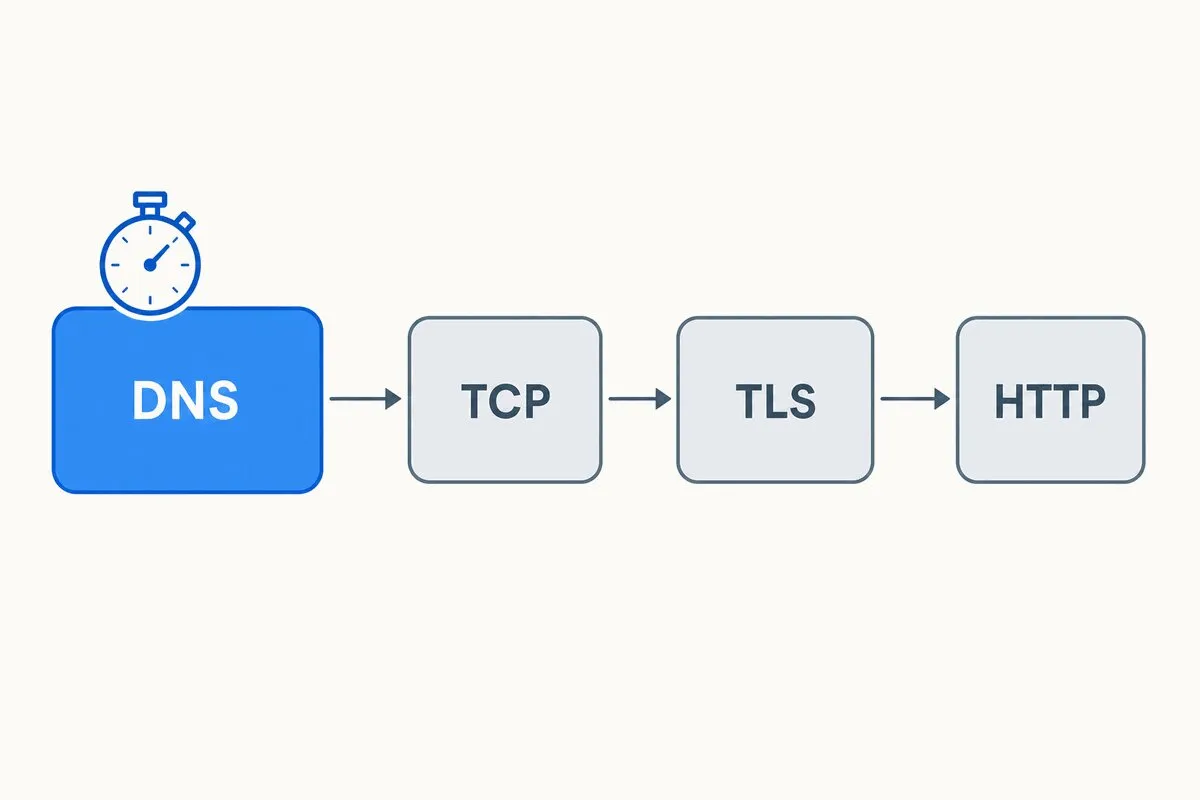
Because DNS sits in front of everything, the way an agent handles that lookup is a real design decision, not a detail. Resolve it fresh on every request and you catch resolver problems fast, but you add load and lookup time to each run. Cache it and your numbers get faster and steadier, but a broken DNS record can hide behind the cache for hours. Dotcom-Monitor’s modes exist to let you pick which tradeoff fits the thing you are actually monitoring. For a deeper look at trimming that first hop, see our guide to improving DNS resolution time.
The Four DNS Modes in Dotcom-Monitor
Dotcom-Monitor exposes four DNS resolve modes on a monitoring task. Each one changes where the IP address comes from and how long it sticks around.
Device Cached
Device Cached is the default. Within a single device check, the agent resolves each hostname once and shares that answer across every task in that device for the rest of the run. If a task earlier in the same check already resolved the host, the later task reuses the cached IP. If not, the agent runs a full lookup and caches the result for the duration of the check.
The upside is efficiency. Most checks finish in under a minute, so there is no reason to resolve the same host every few seconds. The catch shows up in per-task timing. If one device monitors two URLs on the same host, the first URL carries the DNS lookup time and the second uses the cached IP, so the second looks faster even though nothing about it is. That is expected behavior, not a bug, but it surprises people reading a waterfall for the first time.
Non-Cached
Non-Cached skips the device cache entirely. Every task execution runs its own full DNS lookup, so no run borrows a previous run’s answer. That gives you uniform, comparable timing because every check pays the same full resolution cost.
The tradeoff is load and latency. A fresh lookup on every run adds time to each task and puts more traffic on DNS infrastructure. Non-Cached also is not available for the browser-based BrowserView or UserView platforms. A real page can pull dozens of elements from the same host, and resolving that hostname hundreds of times inside a few seconds is not how a browser works, so resolving once per run is the realistic model there.
TTL Cached
TTL Cached behaves like a real resolver on a user’s machine. It honors the record’s time-to-live: the agent caches the resolved address and keeps using it until the TTL expires, then re-resolves through the local DNS server. This is the mode that most closely mimics what an actual visitor experiences, because their browser and OS cache the same way.
The risk lives in that same behavior. If the DNS server backing the record fails while a valid answer is still cached, the monitor may not notice until the TTL runs out, and TTL can be set to hours, days, or longer. So TTL Cached is the right call when you want realistic user-experience timing, and the wrong call when catching a DNS failure quickly is the whole point of the check.
External DNS Server
External DNS Server points the lookup at a specific resolver IP that you choose. If you know most of your users sit behind a public resolver like Google (8.8.8.8, 8.8.4.4) or Cloudflare (1.1.1.1), you can test resolution through that exact service. You can also aim at a resolver you know is authoritative for the zone to skip the recursive walk and get faster, more direct lookups.
The limit is coverage. As long as your chosen resolver returns a valid answer, the monitor sees success, even if the DNS server actually responsible for the domain is misbehaving. So this mode tests one resolver’s view of the world, not the whole chain. One more detail worth knowing: each distinct resolver IP gets its own cache, so two tasks pointed at different external servers keep separate caches.
Caching vs Non-Caching vs Temporary Caching
This is the decision that trips people up, so it is worth putting the three side by side. Caching (Device Cached) optimizes for efficiency. Non-caching (Non-Cached) optimizes for comparable, repeatable timing and fast failure detection. Temporary caching (TTL Cached) optimizes for realism by aging out records the way a browser does.
| Mode | How it resolves | Best for | Main tradeoff |
|---|---|---|---|
| Device Cached (caching) | Once per device check, shared across its tasks | Efficient checks; multiple tasks on the same host | First task carries lookup time; later tasks look faster |
| Non-Cached (non-caching) | Fresh full lookup on every execution | Uniform timing; fast detection of DNS problems | Higher DNS load and added latency; not for BrowserView/UserView |
| TTL Cached (temporary caching) | Honors the record TTL, then re-resolves | Matching real-user experience | A failed DNS server can hide until the TTL expires |
| External DNS Server | Queries a resolver IP you specify | Testing a specific public or authoritative resolver | Sees only that resolver’s answer, not the full chain |
The short version: cache for speed, skip the cache to catch failures fast, honor the TTL to see what users see. Pick the one that matches why the check exists.
Why Most Monitoring Tools Miss DNS Issues
Here is what makes this worth setting up: most monitoring tools do not give you the choice. They resolve a hostname once, cache it, and reuse that answer for as long as the record lives. That works until a DNS problem shows up in production—a bad record, a failed authoritative server, a resolver handing back the wrong IP—because a cached monitor keeps reporting green against a stale answer while real users hit the failure.
Granular control over the resolve mode is uncommon in the monitoring space. Forcing a fresh lookup on every check, aging records out on their TTL, or aiming at a specific resolver is close to a Dotcom-Monitor signature, and it is the line between a monitor that assumes DNS is fine and one that actually tests it. If catching production DNS problems is why the check exists, the default cache-everything behavior most tools ship with is exactly what hides them.
How to Choose the Right DNS Mode
The mode you want depends on the question the monitor answers. Here are the patterns that come up most often for DevOps and SRE teams.
You want to catch DNS failures as fast as possible. Use Non-Cached. When a check exists to alert you the moment resolution breaks—a registrar change gone wrong, an expired zone, a hijacked record—you do not want a stale answer sitting in cache. Fresh resolution every run means the failure shows up on the next check, not after a multi-hour TTL. Pair this with tight alerting so the signal reaches someone on call.
You want timing that matches a real visitor. Use TTL Cached. If the check backs an uptime monitoring SLA or feeds a real-user-experience dashboard, resolving the way a browser resolves keeps your numbers honest. Just accept that DNS-failure detection lags by up to one TTL, and add a separate Non-Cached check if that gap matters.
You run several tasks against the same host. The default Device Cached is usually right. It keeps DNS load reasonable and resolves the host once per run. Read the per-task waterfall with the caching in mind: the first task owns the lookup time.
You care about one specific resolver. Use External DNS Server. This fits teams validating that Google or Cloudflare’s public resolvers return the correct record, or checking a specific authoritative server directly. It is a targeted test, so keep a broader check running alongside it. For the wider strategy, our roundup of DNS monitoring tools covers how these checks fit together.
Which DNS Errors Each Mode Catches
DNS is a common failure point, and it fails in more than one way. Records get changed during a migration. A zone expires. An authoritative server goes down. And in the worst case, an attacker poisons a cache to point your domain at a server they control. Your resolve mode decides how quickly these show up.
Non-Cached is the fastest at surfacing resolution problems because it never trusts a prior answer. TTL Cached is the slowest, since a valid cached record can outlive the failure behind it. External DNS Server catches problems with the specific resolver you target but can miss issues elsewhere in the chain. If you want the full picture of how a check breaks down across layers, our guide to DNS, TCP, TLS, and HTTP errors maps each stage. And if outages are the concern, the playbook on how to avoid DNS outages pairs well with a Non-Cached check.
Whatever mode you run, the point of DNS monitoring is to be the first to know when a record changes to something you did not set. Dotcom-Monitor generates an error and fires an alert when a hostname resolves to an unexpected IP, so you can react before users land on the wrong server.
How to Set the DNS Mode in Dotcom-Monitor
Changing the resolve mode takes a few clicks on the monitoring task. The exact labels vary slightly by device type, but the flow is the same.
- Step 1: Open the device or task you want to configure in the Dotcom-Monitor platform.
- Step 2: Edit the task settings and find the DNS Resolve Mode (or DNS Options) section.
- Step 3: Choose one of the four modes: Device Cached, Non-Cached, TTL Cached, or External DNS Server.
- Step 4: If you picked External DNS Server, enter the resolver IP address to query, such as 8.8.8.8 or 1.1.1.1.
- Step 5: Save the task and let it run a few intervals, then check the response-time breakdown to confirm the DNS timing looks the way you expect.
Because each device runs from Dotcom-Monitor’s global monitoring network, you can compare how resolution behaves from different locations once the mode is set.
The Bottom Line
DNS resolution is the first thing every check does, so the resolve mode is not a setting to leave on autopilot. Cache when you want efficient checks against a shared host. Skip the cache when catching a DNS failure fast is the job. Honor the TTL when you want timing that matches a real user. And point at an external resolver when you need to test one specific service’s view.
Most teams end up running more than one mode across their checks, because a single monitor rarely answers every question. Match the mode to the reason the check exists, and your numbers start telling you the truth about DNS.
Watch DNS Before It Breaks Your Uptime
Set the resolve mode that fits each check and get alerted the moment a record changes. Dotcom-Monitor runs DNS monitoring from a global network with the caching control this guide walks through.
