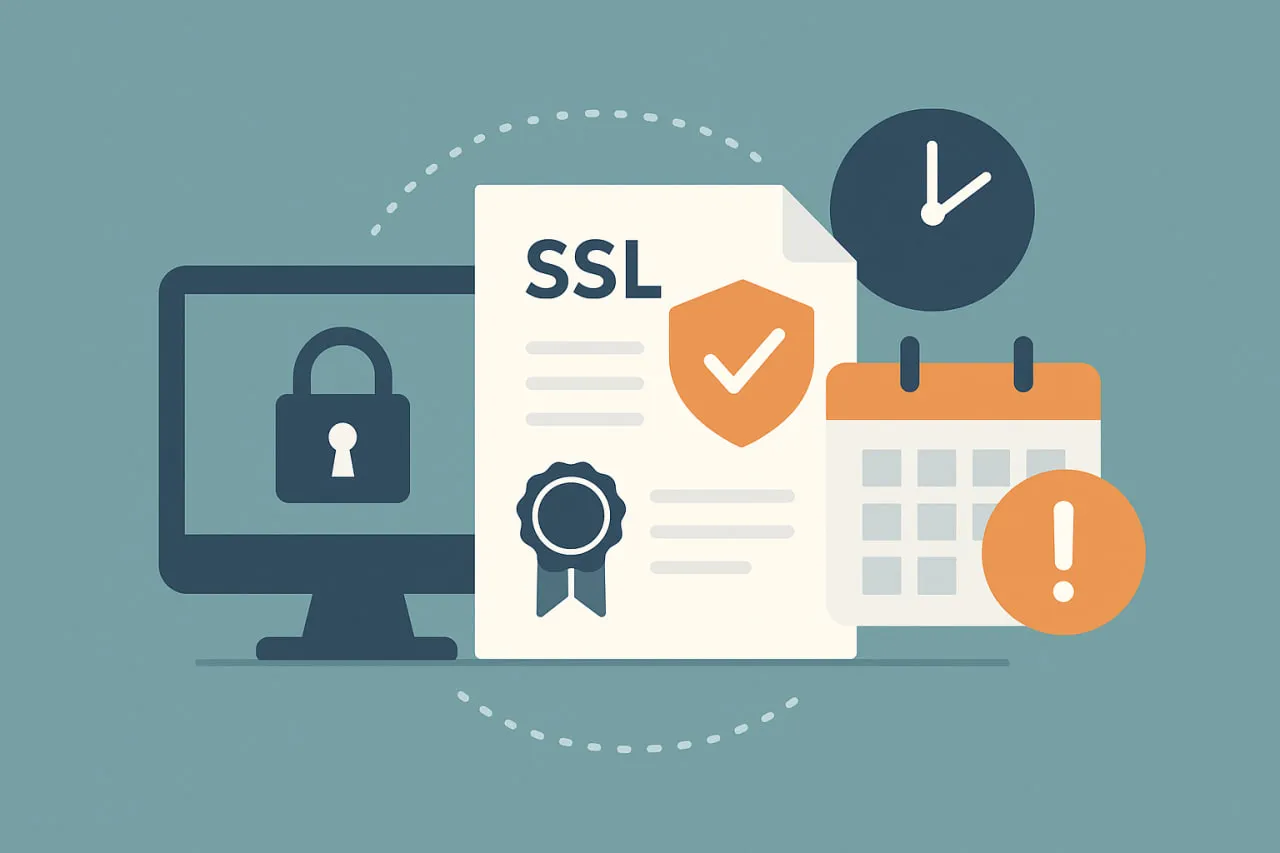
An SSL certificate expiration date tells you when the encryption certificate protecting your website will stop being valid. If the certificate expires, browsers will display security warnings and users may be blocked from accessing your site.
You can check the SSL certificate expiration date in several ways:
- using your browser
- using command line tools like OpenSSL
- using online SSL checkers
- using automated monitoring tools
This guide explains step-by-step how to check SSL certificate expiration using different methods.
SSL certificates are critical for securing websites, web applications, and APIs. They encrypt data in transit, verify server authenticity, and build user trust. However, SSL certificates have a limited lifespan; as of the industry update on March 15, 2026, all publicly trusted certificates are capped at a maximum of 200 days. When a certificate expires, visitors encounter security warnings, some services stop working, and it can affect search engine rankings.
Monitoring SSL certificate expiration is essential to maintain secure and uninterrupted online services. While there are many methods to check SSL certificates, Dotcom-Monitor provides an easy way to monitor SSL/TLS certificates for expiry, validity, and chain trust, an important component of full API observability, giving teams peace of mind and preventing unexpected downtime.
This guide explains how to check SSL certificate expiration dates, the role of SSL monitoring, best practices for maintaining visibility, and how Dotcom-Monitor can help you stay ahead of SSL expiry issues.
Introduction: Why Monitoring SSL Certificates Matters
SSL certificates are not permanent; they have defined expiration dates. Once a certificate expires, users visiting your website or interacting with APIs will see security warnings, which can reduce trust and even block access.
Keeping track of all SSL certificates manually can be challenging, especially when you manage multiple domains or subdomains. Dotcom-Monitor allows teams to monitor configured endpoints continuously, providing alerts when a certificate changes or becomes invalid. This proactive approach helps avoid downtime and ensures uninterrupted secure connections.
Monitoring SSL certificates is not just about preventing browser warnings—it also improves reliability, avoids service interruptions, and gives IT teams confidence that critical systems are secure.
Understanding SSL Certificates and Expiration
SSL certificates serve two main purposes: encryption and authentication. They secure data in transit and confirm that a website or server belongs to the organization it claims to represent. Each certificate includes key information: the domain name, issuer, validity period, and chain of trust.
Expiration is built into certificates as a security measure. It ensures that certificates are regularly renewed or replaced, maintaining the integrity of encryption keys and verifying domain ownership. Expired certificates are treated as untrusted by browsers and operating systems, leading to warnings and access blocks.
By understanding SSL expiration, IT teams can implement monitoring systems to catch potential issues early, avoiding disruptions to users or business services.
What Is SSL Monitoring?
SSL monitoring is the process of continuously checking configured endpoints for certificate validity. Dotcom-Monitor performs SSL monitoring by making connections to the specific domains or endpoints you configure.
SSL monitoring focuses on:
- Expiry date
- Chain of trust validity
- Issuer information
- Certificate status (valid/invalid)
When a monitored certificate changes or becomes invalid, Dotcom-Monitor can send alerts via email or webhooks, allowing IT teams to take action before users are affected.
This approach helps maintain secure connections, reduces downtime, and gives teams visibility over their SSL environment.
How to Check SSL Certificate Expiration Manually
For small-scale setups or one-off checks, manual verification is possible. There are multiple ways to view SSL certificate expiration:
| Method | Difficulty | Best For | Scalability |
| Browser Check | Easy | Single websites | Very Low |
| OpenSSL/CLI | Medium | System admins | Low (Manual) |
| DevOps Scripts | Advanced | CI/CD Pipelines | High (Custom) |
| Monitoring Tools | Easy/Medium | Multiple domains | High (Automated) |
1. Checking via Web Browser
Most browsers allow inspection of SSL certificates:
- Open the website in your browser
- Click the padlock icon in the address bar
- Select “Connection is secure”
- Open certificate details
- Check the “Valid to” date.
The “Valid to” field shows when the certificate expires. After this date browsers will mark the website as insecure unless the certificate is renewed.
This method is simple but impractical for organizations managing multiple certificates or endpoints.
2. Using Command-Line Tools
For developers and system administrators, tools like OpenSSL provide raw, detailed certificate data.
Example command:
openssl s_client -connect yourdomain.com:443 -servername yourdomain.com | openssl x509 -noout -datesThis outputs both the notBefore (start) and notAfter (expiration) dates.
Best For: System administrators performing ad-hoc checks or writing basic scripts. While powerful, it lacks built-in alerting or centralized visibility.
3. Custom Scripting & DevOps Automation
This “Advanced” method involves integrating certificate checks directly into your CI/CD pipelines (like GitHub Actions or GitLab CI) or infrastructure-as-code (Terraform).
- Scripts can be written in Python or Bash to query endpoints and push data to a database.
- Automated workflows can block a deployment if a certificate is nearing its 200-day limit.
Best For: Mature DevOps teams who want to bake “security as code” into their deployment process and ensure no service launches with an invalid cert.
4. Dedicated Monitoring & Lifecycle Tools
Modern SSL Certificate Monitoring Tools provide a ‘set-and-forget’ solution.
- These tools offer centralized dashboards to track hundreds of domains simultaneously.
- They provide multi-channel alerts (Slack, Email, PagerDuty) well before expiration.
- Many now support ACME automation, which can handle the renewal process automatically without human intervention.
Best For: Organizations managing multiple domains or complex microservice architectures where manual tracking is no longer scalable.
Why Manual Checks Are Not Enough
Manual verification works for small or static websites, but modern organizations often have multiple domains, subdomains, and API endpoints. Tracking each SSL certificate manually is prone to errors, especially as systems scale.
Failing to monitor SSL certificates can lead to:
- Browser warnings for users
- Broken API calls
- Interrupted services
- Loss of trust and revenue
Automated monitoring ensures teams receive alerts if a monitored certificate changes or becomes invalid, which is far more reliable than manual checks.
How to Monitor SSL Certificates Automatically
Manual checks can work for occasional verification, but modern infrastructure usually includes multiple domains, subdomains, APIs, and services. In these environments, automated SSL monitoring is the most reliable way to ensure certificates remain valid and do not expire unexpectedly.
Automatic SSL certificate monitoring tools continuously check configured endpoints and track certificate validity in real time. Instead of manually reviewing expiration dates, teams receive alerts when a certificate is close to expiring or becomes invalid.
Automated monitoring typically performs several checks:
- Expiration tracking: Detects when a certificate is approaching its expiration date.
- Certificate validity: Ensures the certificate is trusted and properly installed.
- Chain of trust verification: Confirms that intermediate and root certificates are valid.
- Certificate change detection: Alerts teams if a certificate is replaced or modified.
These automated checks help prevent service interruptions caused by expired or misconfigured SSL certificates.
Most monitoring platforms run checks at regular intervals and notify teams through channels such as:
- Email alerts
- Webhooks or integrations with incident management tools
- Dashboard notifications and monitoring reports
Using automated SSL monitoring significantly reduces operational risk. Instead of reacting to browser warnings or service failures, teams receive early alerts and can renew or replace certificates before users experience issues.
Tools like Dotcom-Monitor provide automated SSL/TLS monitoring for configured endpoints, allowing teams to track expiration dates, validate certificate chains, and receive alerts when changes occur.
Dotcom-Monitor: SSL Certificate Monitoring
It’s important to note that Dotcom-Monitor does not issue, renew, or rotate certificates. It only monitors certificates on endpoints you configure.
Key capabilities:
- Track expiration dates for monitored SSL/TLS certificates
- Validate chain of trust and issuer
- Alert if a certificate becomes invalid or changes
- Export reports for internal review
Dotcom-Monitor provides visibility and alerts, but does not perform certificate management, PKI workflows, or automated renewal.
Free Options and Trials
Dotcom-Monitor offers a 1-month free trial, allowing users to test SSL certificate monitoring without long-term commitment. During the trial, teams can:
- Add domains/endpoints for monitoring
- Receive alerts on certificate changes or expirations
- Generate reports showing certificate status
This trial is useful for evaluating monitoring capabilities, but there is no permanent free plan.
How to Monitor SSL Certificates Effectively
To maintain visibility and avoid expired certificates:
- Add each domain and endpoint you want to monitor.
- Set up alerts for certificate changes or expiration warnings.
- Use reports to review all monitored certificates regularly.
- Ensure critical domains are monitored with accurate configurations.
- React promptly to alerts to prevent service interruptions.
By configuring monitoring for each endpoint, IT teams can proactively prevent downtime caused by expired certificates.
Dotcom-Monitor Alerts: Keeping Teams Notified
Dotcom-Monitor sends alerts when:
- A certificate’s validity changes
- The certificate is invalid
- The monitored certificate is about to expire
Alerts can be sent via:
- Webhooks (to integrate with other systems)
This ensures teams can respond quickly and maintain secure operations.
Reports and Documentation
While Dotcom-Monitor does not provide compliance frameworks, it allows exporting monitoring reports for documentation purposes. Reports include:
- Certificate issuer
- Validity period
- Chain status
- Alert history for monitored certificates
These reports are useful for internal reviews and tracking certificate health, but should not be represented as official compliance reports for PCI, HIPAA, or ISO audits.
Checking SSL Certificates Across Multiple Endpoints
Organizations with multiple domains or subdomains can configure monitors for each endpoint. While Dotcom-Monitor does not perform automatic discovery, users can manually add all public-facing endpoints.
This ensures that:
- Every critical domain is covered
- Expiration alerts are received on time
- IT teams maintain control over which endpoints are monitored
Manual configuration is essential for complete monitoring coverage, and alerts provide early warning before expiration.
Best Practices for SSL Monitoring with Dotcom-Monitor
- Add All Publicly Accessible Endpoints: Ensure that every domain you want to monitor is manually added.
- Configure Alerts: Set thresholds to receive timely notifications before certificates expire.
- Review Reports Regularly: Export certificate monitoring reports for internal documentation.
- Verify Certificates After Changes: When renewing or replacing certificates, check that the new certificate is being monitored correctly.
- Share Access Within Teams: Dotcom-Monitor allows monitor sharing with team members based on account permissions.
Conclusion: Staying Ahead of SSL Expiration
SSL certificate monitoring is essential for maintaining secure online operations. While Dotcom-Monitor does not renew certificates or manage PKI, it provides:
- Continuous monitoring of configured endpoints
- Alerts for certificate changes or invalid status
- Reporting on expiry dates and chain validity
By proactively monitoring SSL certificates, teams can prevent service interruptions, maintain trust with users, and ensure secure connections. Even with manual configuration, Dotcom-Monitor provides a reliable solution to track SSL health and avoid unexpected downtime.
Start monitoring your SSL certificates today with Dotcom-Monitor’s 1-month free trial and ensure uninterrupted secure connections for your critical services.